On Brokerage, Agency and Enterprise, the Team Referral Queue can pick a teammate for you. You tell Refervia who handles which lines of business, add rules if you want, then choose Auto: match by line of business when you post.
Before you start
You need to be the team owner, or an admin with Can assign and route turned on.
Set each teammate's lines of business
- Click Team in the left menu.
- Scroll down to Team settings, then Lines of business.
- Click Edit next to a teammate.
- Tap every line of business they handle.
- Click Save.
Add a routing rule
- In Team settings, find Routing rules.
- Under Add a rule, pick a line of business in When this line of business….
- Pick a teammate in …assign it to.
- Click Add rule. The rule shows in a list above, for example "When a Homeowners referral is posted, assign it to" and the teammate's name.
- To delete a rule, click Remove next to it.
Post with Auto
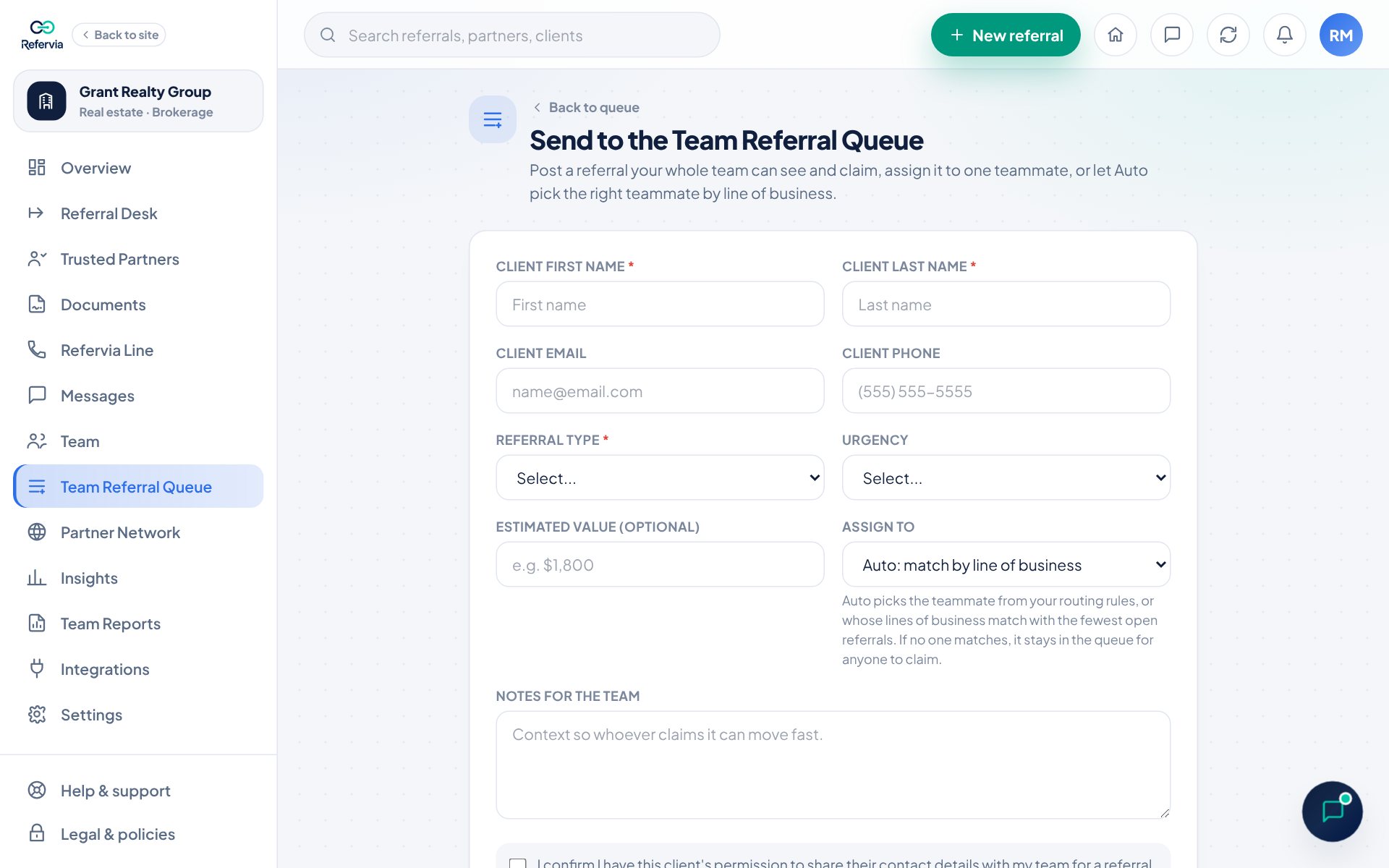
- Open Team Referral Queue and click Send to queue.
- Fill in the client and Referral type.
- Under Assign to, keep Auto: match by line of business. On paid team plans it is picked for you.
- Click Add to team queue.
How Auto picks
- A routing rule for that referral type wins first.
- If there is no rule, Auto picks a teammate whose lines of business match, with the fewest open referrals.
- If no one matches, the referral stays in the queue for anyone to claim.
Change who has it
Owners and admins with Can assign and route see Reassign on open queue referrals. Pick a teammate, or Back to the queue.
Good to know
- On Brokerage Free and Agency Free, Auto shows as part of Brokerage, Agency and Enterprise. You can still post for anyone to claim, or assign one teammate.
- On Enterprise, a rule can also be set for one office. See Offices and locations.
Trouble?
- "Pick a line of business and a teammate.": Choose both before clicking Add rule.
- "Your team owner sets lines of business for the team.": Your admin permissions do not include routing. Ask your owner.
Was this helpful?