Use this when you own a Brokerage or Agency on Refervia and want your agents or producers inside your workspace. Team Members work inside your company. To connect with someone outside it, invite a Trusted Partner instead.
Before you start
You need a team plan: Brokerage Free, Agency Free, Brokerage, Agency or Enterprise. On an individual plan, the Team page shows Team management is an agency or brokerage feature.
Steps
- Open Team in the left menu. On a phone, owners tap Team in the bottom bar; team admins tap Settings, then Your team.
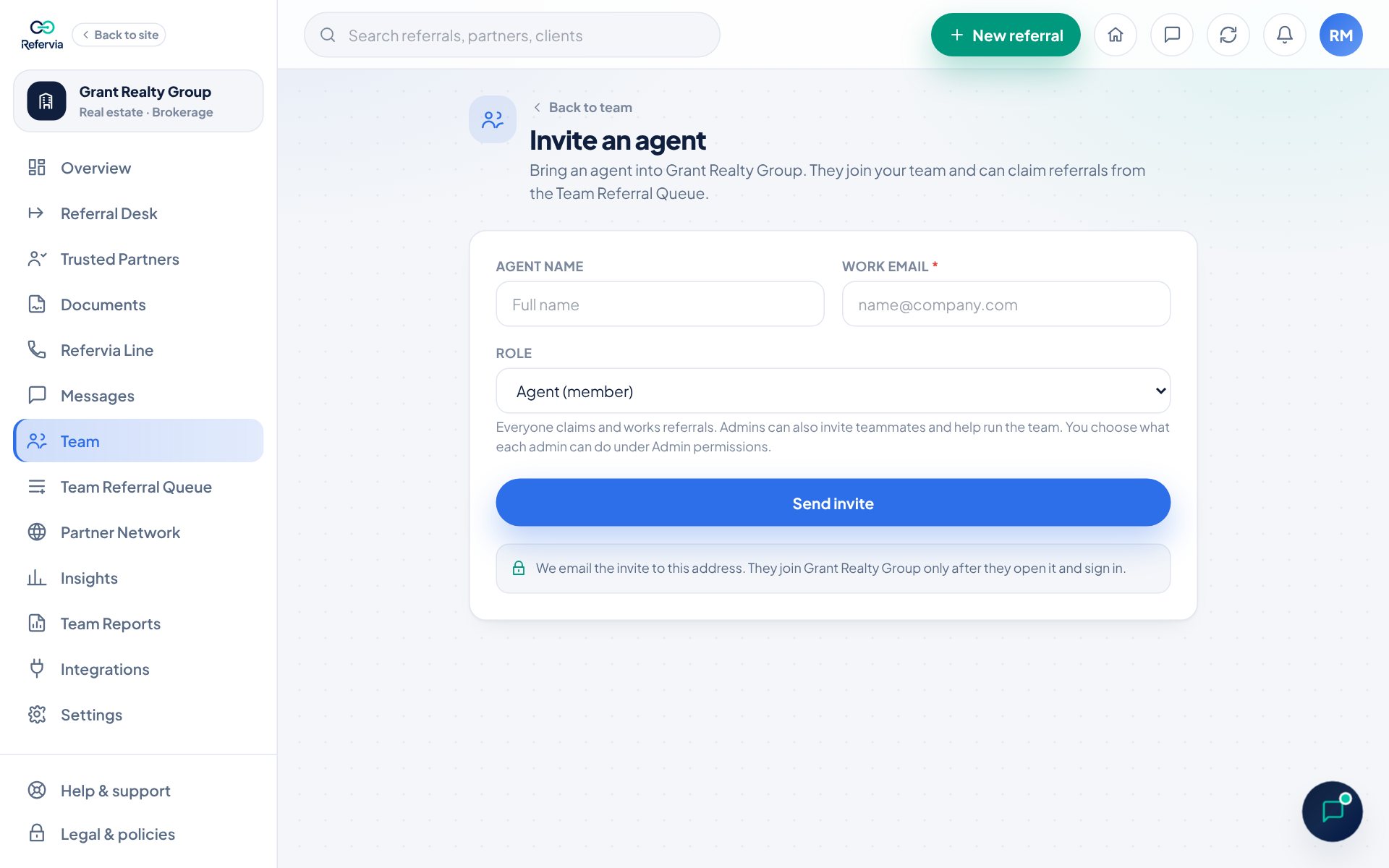
- Click Invite an agent at the top. Insurance teams see Invite a producer, and loan officer teams see Invite a loan officer. You can also click + Invite on your team roster.
- Type their name in Agent name (or Producer name, or Loan officer name). This is optional.
- Type their Work email. This is required.
- Pick a Role: Agent (member) or Brokerage admin. Insurance teams see Producer (member) or Agency admin, and loan officer teams see Loan officer (member) or Team admin.
- Click Create team invite.
- You will see Invite email sent and a Backup link if they don't get the email. Click Copy link and send it to them yourself by text or email, so you know they have it.
- Click Back to team, or Invite another to keep going.
Good to know
- They join your team after they open the link and sign in. Then they show on your roster and can claim referrals from the Team Referral Queue.
- If they already have a Refervia account, they sign in with it. Their roster row says joined with existing account, and a Verified license carries over.
- You get an in-app notification when someone joins.
- Your invites appear under Team invites on the Team page as Pending, Accepted, Expired or Revoked. On a pending invite you can Copy link again, or click Revoke and then Confirm revoke.
- Brokerage Free and Agency Free are for up to 3 users. Pending invites count toward your seats.
- Team admins can invite too, but only as members. Only the owner can invite another admin.
Trouble?
- "You've reached your plan's team seat limit": Revoke a pending invite you no longer need, or move up a plan on Plan & billing in Settings.
- "They can't join with the link": They must sign in with the email the invite was sent to. The join page shows which email to use.
- "This invite is no longer active": The invite was already used, revoked or expired. Create a new one.
- "Please enter a valid email address.": Check the Work email for typos.
- Invite ready to share instead of Invite email sent: That person asked Refervia not to email them, or email to that address bounces, so the invite wasn't emailed. Copy Their invite link and send it to them yourself. You can copy it again later under Team invites.
Was this helpful?