A Trusted Partner is a professional outside your company that you send and receive referrals with. All you need is their email.
Steps
- Click Trusted Partners in the left menu. On a phone, tap Partners in the bottom bar.
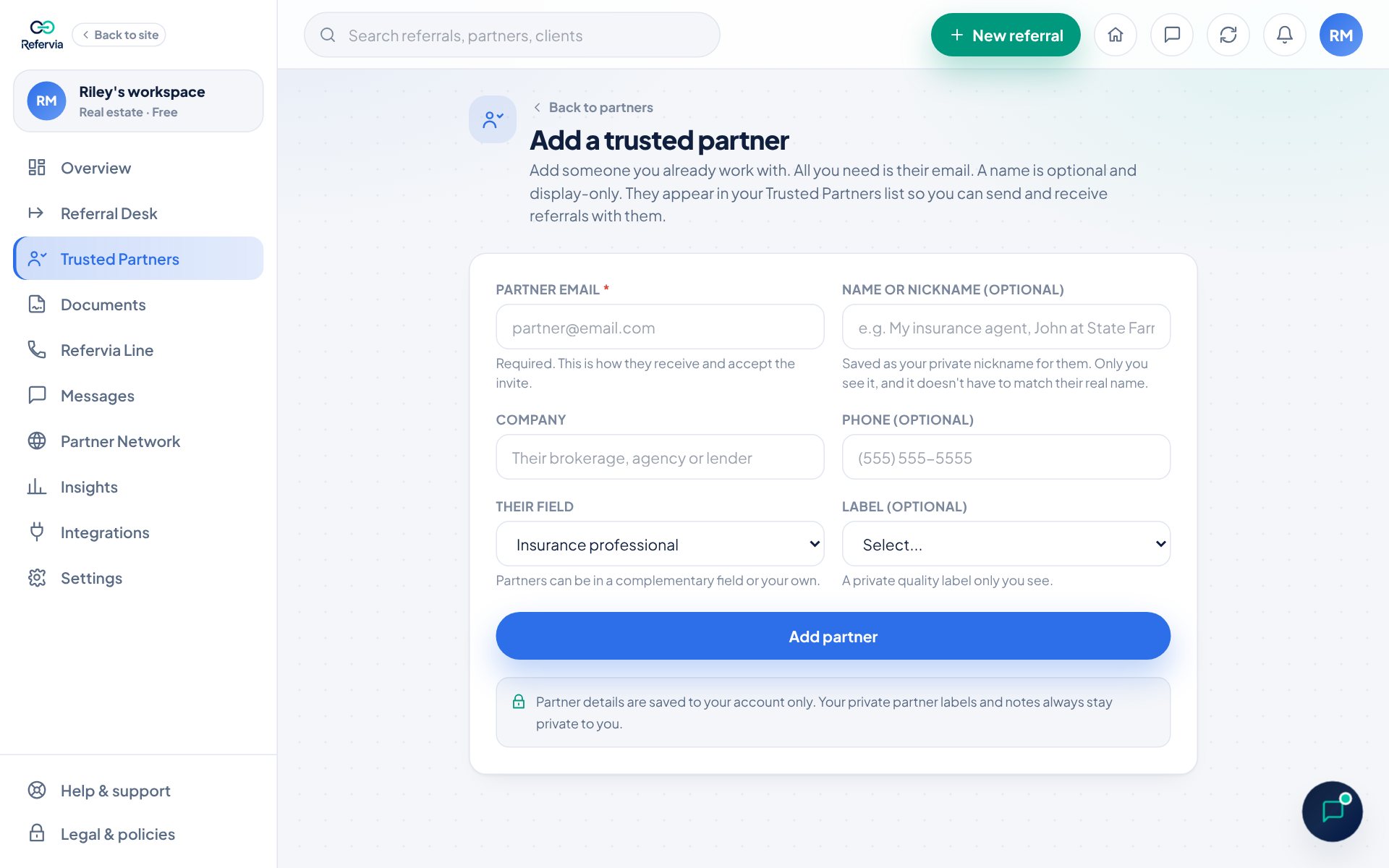
- Click Add partner at the top right of your list. If your list is empty, click Add a trusted partner.
- Type their Partner email. This is the only required field.
- If you like, add a Name or nickname, Company, Phone, Their field, and a private Label.
- Click Add partner.
- Refervia emails them an invite. On the Partner added screen you can also find Their private invite link and click Copy link.
- Paste the link into a text to your partner if you want to nudge them yourself.
- To invite someone else, click Add another.
Good to know
- You can also start from the Add trusted partner button on your Overview.
- The partner shows as Pending until they accept. After they accept, they show as Connected.
- The name or nickname is a private label only you see. It does not have to match their real name.
- Their field starts on the other side of the handoff (insurance for real estate agents, real estate for insurance pros). You can change it. Partners can be in your own field too.
- Only the email you invited can accept. Use the email they will sign in with.
- Lost the link? On Trusted Partners, click Copy link on any pending partner.
- Not accepted yet? On Trusted Partners, click Resend invite on a pending partner. You can resend once every 24 hours.
- Adding an email that is already waiting on your list does not make a duplicate. You will see "No need to add them twice" and a Resend invite button instead.
- Looking for someone new? Use the Partner Network to find members and request to connect.
- The Free plan allows up to 10 Trusted Partners, and Brokerage Free or Agency Free allows 25 per person. Pro and every paid plan have no partner limit. Every partner on your list counts, including pending invites, but accepting someone else's invite is never blocked.
- New accounts can also invite up to 5 partners right after sign up, on Bring in your top referral partners.
Trouble?
- "You've reached your plan's trusted partner limit": Click Manage partners and remove someone you no longer work with, or click See plans.
- My partner says the invite is for a different email: Add them again with the email they use for Refervia, and send the new link.
- My partner says the link isn't valid anymore: Check that they are still in your list as pending. If not, add them again and send the new link.
- "We didn't email your invite" or "They asked not to get email from Refervia": That person asked Refervia not to email them, so Refervia doesn't send them invites or referrals. They're still on your list. Click Copy link on their card and send it to them yourself. If it says email to that address bounces, check the address for a typo.
Was this helpful?