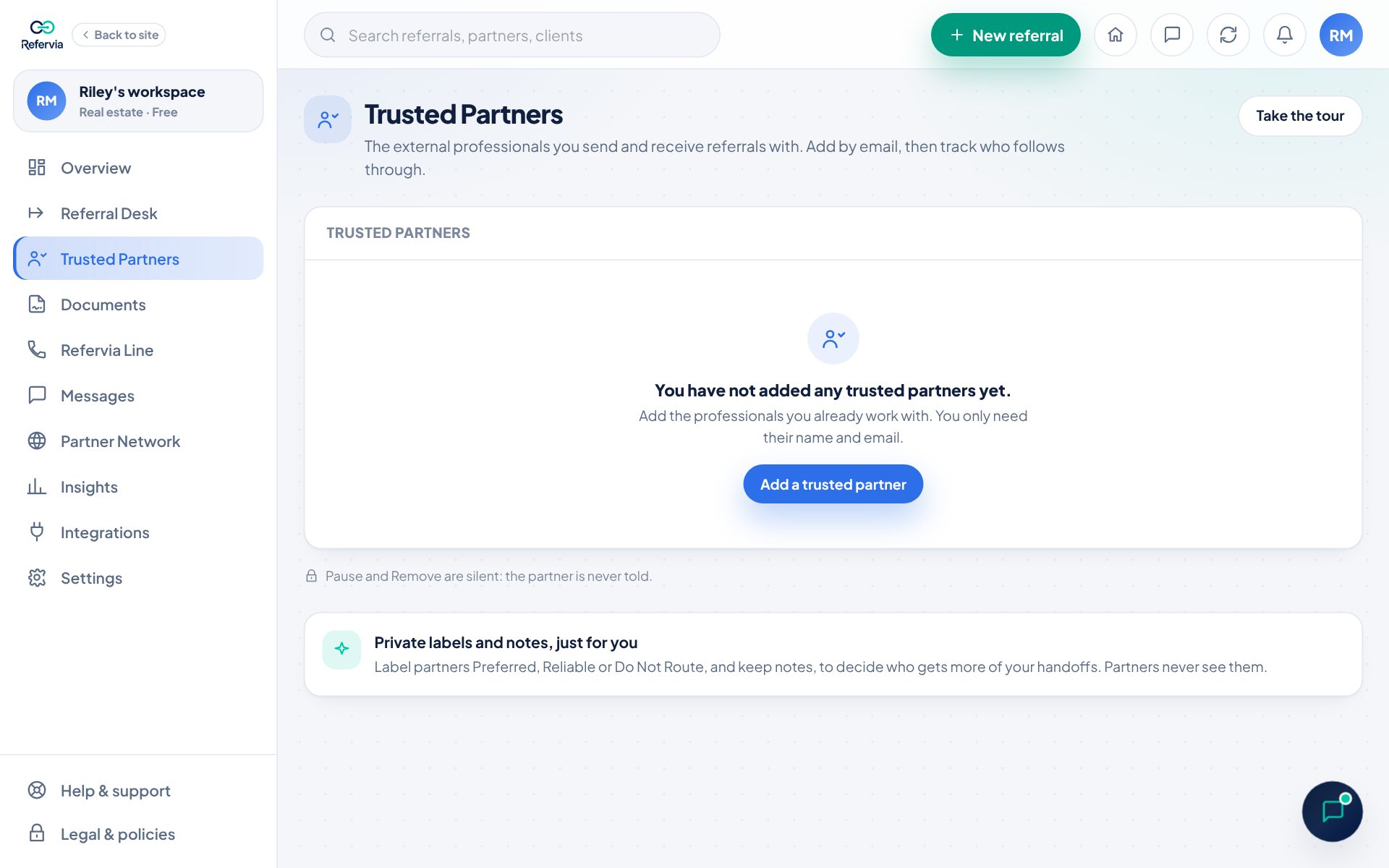
All your Trusted Partners live on one page. From there you can find anyone fast, send them a referral, and keep your list tidy. Notes, labels, Pause and Remove are private: the other person is never notified.
Steps
- Click Trusted Partners in the left menu. On a phone, tap Partners in the bottom bar.
- To find someone, type their name, business, type (like "Loan officer") or city in the search box at the top of the list.
- To narrow the list, use the All statuses menu (Connected, Pending, Paused), the All labels menu, or the All locations menu (a whole state or one city).
- To change the order, pick Sort: Quality, Sort: Name, or Sort: Recently added.
- To send someone a referral, click Send referral on their row. The form opens with them already picked.
- To chat with a connected partner, click Message.
- To keep notes, click Private notes under their name, type, and click Save notes.
- To rename someone for yourself, click Add nickname, type a name, and click Save.
Pause or remove a partner
- To take a break, click Pause on a connected partner. Click Resume to bring them back.
- To remove someone, click Remove, then click Remove partner. Changed your mind? Click Keep partner.
Paused partners are hidden from the New referral form until you resume them. Neither action tells the other person. Pausing keeps your partner agreement in place; removing someone ends it for both of you, since it lasts as long as you're trusted partners (see Partner agreement). Removing someone also closes your conversation with them. To stop someone from reaching you at all, click Block under their name instead (see Report or block a member).
Resend an invite
- Find a partner marked Pending.
- Click Resend invite. You will see "Invite sent again to" their email.
- Or click Copy link and send the link yourself by text or email.
You can resend once every 24 hours per partner.
Good to know
- Each card shows what the partner does and where they are, never their email. For a connected partner both come from their own profile (their Partner Network profile, or their market). For someone who hasn't joined yet, you see the type you typed when you added them.
- Pending means you invited them and they have not accepted yet. Connected means they accepted.
- Your nickname and notes are private. Only you see them. Click Edit nickname, then Clear to remove a nickname.
- Label someone Do Not Route to hide them from the New referral form without pausing them.
- On Brokerage, Agency and Enterprise, owners and admins also see Team note. A team label and note are shared with your whole team, never with the partner.
- When a connected partner updates their name, photo, logo, type or location, your list shows the new version.
- On the Free plan, Message shows a Pro tag and takes you to your plan page.
Trouble?
- "No partners match your search": Click Clear filters.
- I don't see Resend invite or Copy link: They only show for pending partners.
- I don't see Pause or Message: They only show for connected partners.
- A partner is missing from the New referral form: They are paused or labeled Do Not Route. Click Show them on the form, or resume them here.
- "Could not remove that partner": Refresh the page and try again.
Was this helpful?