Did someone send you a Refervia invite link? Accept it to become Trusted Partners, so you can send and receive referral handoffs and see the same status on both sides. It is free to join.
Steps
- Open the invite link your partner sent you.
- If you are new to Refervia, click Create your free account. If you already have an account, click I already have an account.
- Use the email the invite was sent to. The page shows it to you.
- Sign up or sign in with Google or with your email.
- New accounts: on Set up your workspace, add your first name and market, then click Save & finish.
- You will see You are connected.
- Click Open your Referral Desk or View your partners. If you wait, you go to your dashboard on your own.
Good to know
- No card is required to accept an invite.
- If you are already signed in with the invited email, opening the link connects you right away.
- After you connect, any referral they already sent you is on your Referral Desk. New ones land there too.
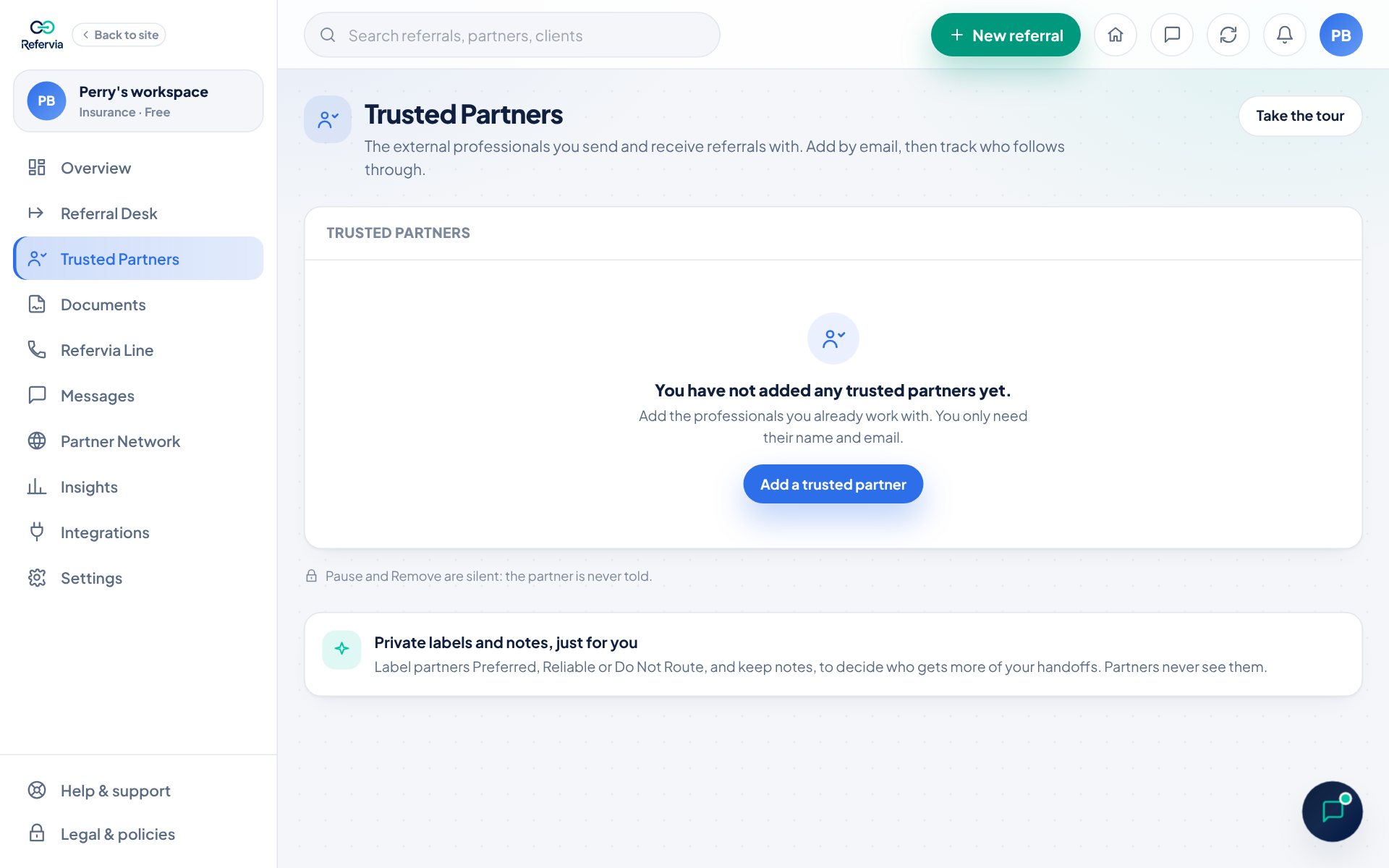
- You each appear in the other's Trusted Partners list.
- After signing up or signing in, you come back to the invite on your own. You do not need to open the link again.
Trouble?
- "This invite is for a different email": You are signed in to another account. Click Sign out and continue as the invited email, or click Stay signed in and go to my dashboard and ask your partner to send the invite to the email you use.
- "This invite was already accepted": Another account already accepted it. If that wasn't you, ask your partner for a new invite.
- "This invite link isn't valid anymore": Ask your partner to send a new one.
- "An account already exists for this email": Click Sign in as with your email instead of signing up.
Was this helpful?