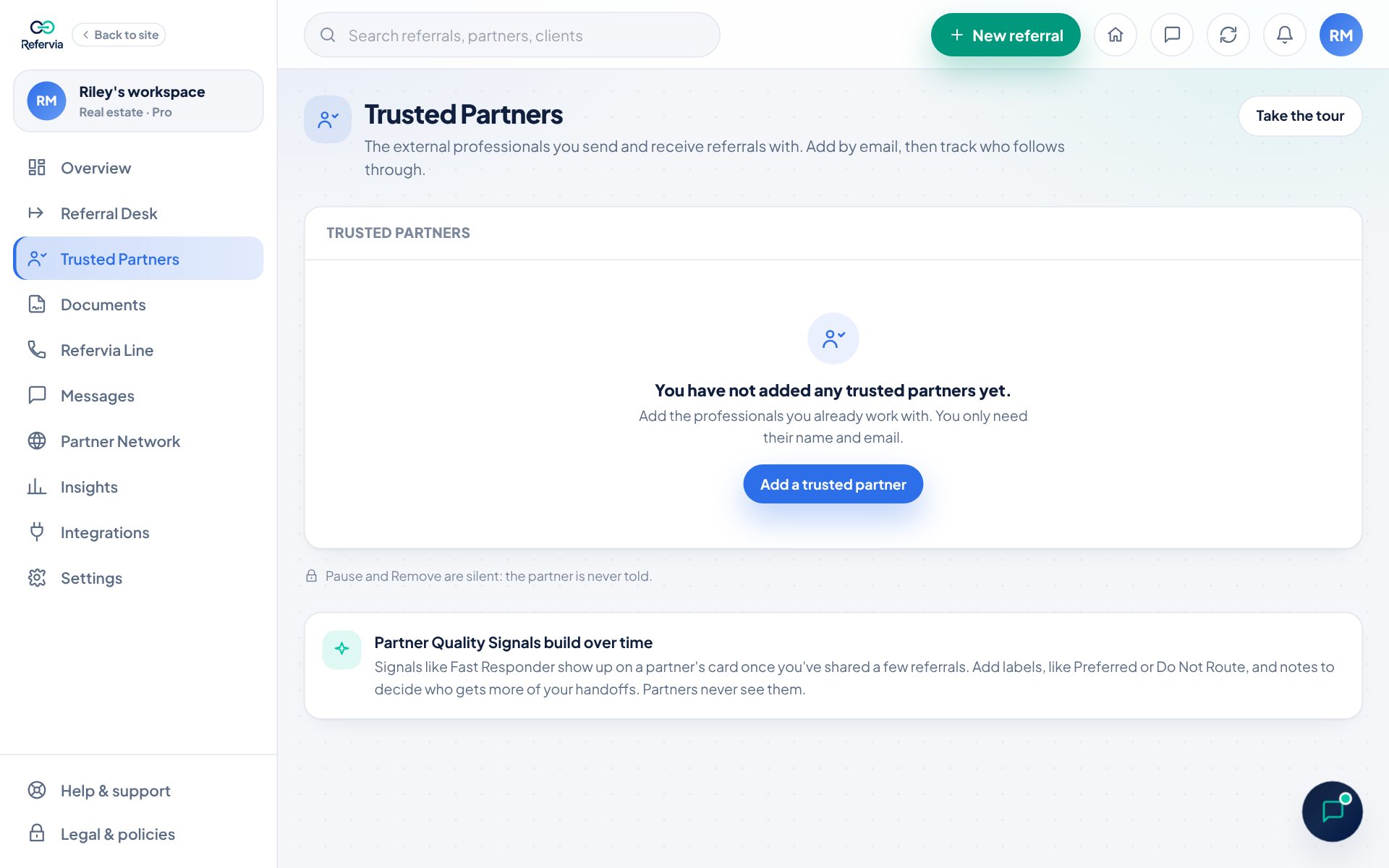
Partner Quality Signals help you decide who gets more of your future handoffs. There are two kinds: automatic badges that Refervia adds from your real referral history (Pro and up), and private labels you pick yourself (every plan). Pro and up means Pro, Pro Max, Brokerage, Agency and Enterprise. Only you see either one.
Automatic badges (Pro and up)
Badges appear under a partner's name on the Trusted Partners page and on the Overview card. Each one needs a little history first, so one referral never earns or loses a badge.
- Fast Responder: they usually contact your client within an hour (at least 2 referrals measured).
- Consistent Updates: on referrals you sent them over a day ago (at least 3), 8 in 10 have moved past New.
- Complete Handoffs: referrals they send you (at least 2) almost always include a phone or email and a note.
- Strong Fit: of the referrals you sent them that ended Completed or Declined (at least 3), 6 in 10 or more were Completed.
- Specialty: most of your handoffs together (at least 3) are one type, like Specialty: Homeowners.
- Active This Month: you exchanged a referral with them this month.
You may also see their typical response time, like 20 min typical response. Hover over a badge to see what it means.
On Free you see See automatic signals like Fast Responder, and the give and get with each partner, with Pro above your list instead. Click Upgrade to compare plans. On Brokerage Free or Agency Free, owners see the same line with Brokerage or Agency, and Team Members see that their team owner can add it.
Give and get (Pro and up)
Next to the badges, give and get shows what you sent each partner and what they sent you over the last 12 months: Balanced when neither of you sends more than twice what the other does, or the verdict with its number, like You send 2.5× more. It's under each partner's name, on the Overview card and in Insights for all your partners at once. See Give and get.
Rank a partner with a label (every plan)
- Click Trusted Partners in the left menu. On a phone, tap Partners in the bottom bar.
- Find the partner in your list.
- Under their name, open the Rank partner… menu.
- Pick Preferred, Reliable, New Partner, Watchlist or Do Not Route.
- A colored label appears next to their name, with a quick Locked in note.
- To see only one group, pick a label in the All labels menu. Pick Unranked to see partners with no label.
- To remove a label, open the menu again and pick Rank partner….
Good to know
- Labels are private to you. Your partner never sees them.
- Do Not Route hides that partner from the Send to partner list on the New referral form. Click Show them on the form if you need them anyway.
- Sort: Quality puts Do Not Route partners last, then connected partners first, then Preferred, Reliable, New Partner, no label, and Watchlist.
- Badges and labels are not ratings or reviews, and Refervia does not endorse any partner.
Trouble?
- "Could not update that partner's label": Refresh the page and try again.
- I don't see any badges: Your plan does not include them, or the partner does not have enough referral history with you yet.
- I don't see give and get for a partner: You haven't exchanged a referral with them in the last 12 months.
Was this helpful?