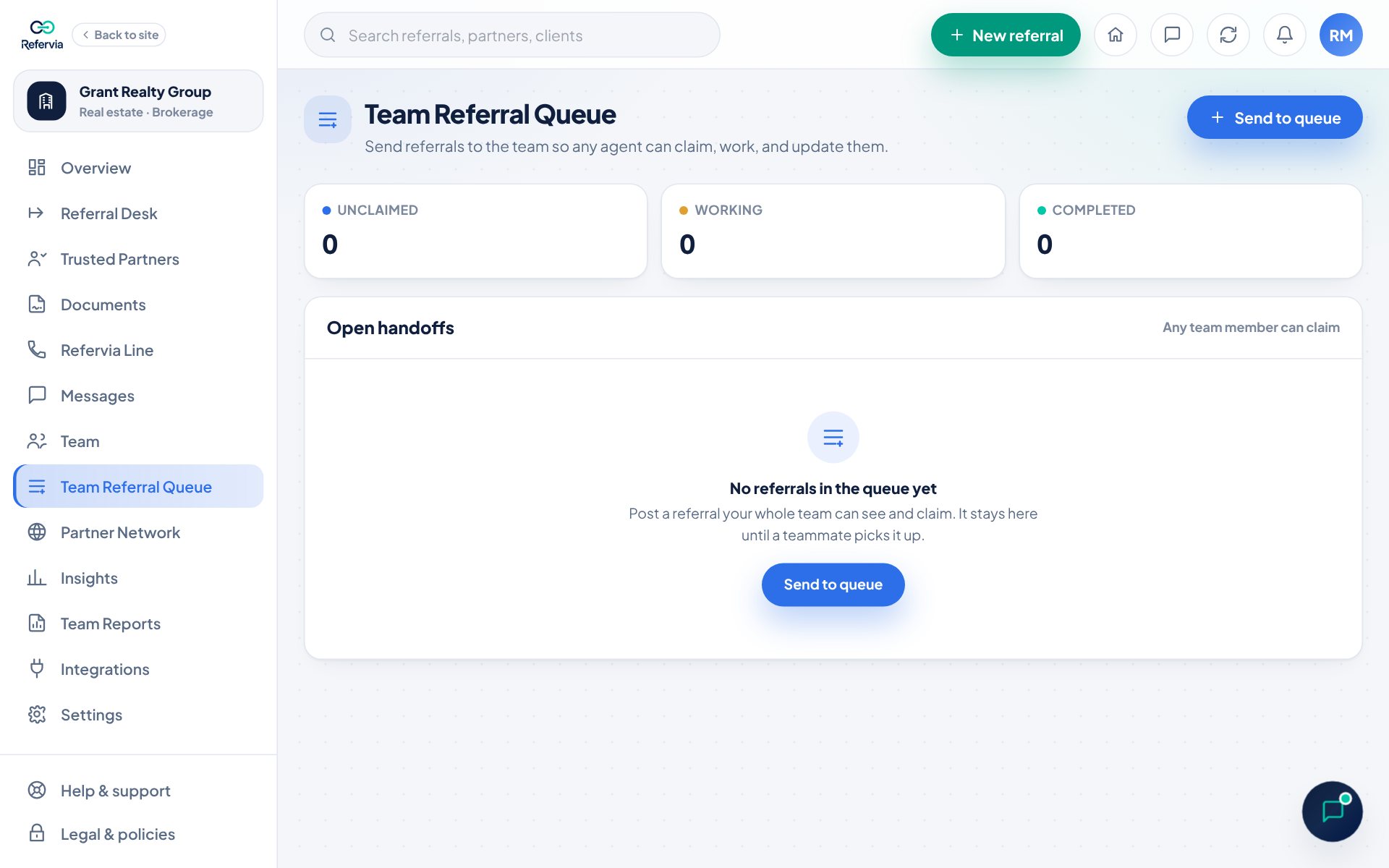
The Team Referral Queue is a shared list of referrals inside your Brokerage or Agency. Anyone on the team can post one, and any available teammate can claim it. It comes with every team plan, starting with Brokerage Free and Agency Free.
Before you start
Team owners must invite their first Team Member before posting. Until then the queue shows Invite a team member first.
Post a referral to the queue
- Open Team Referral Queue in the left menu. On a phone, members tap Queue in the bottom bar. Owners find the queue at the top of Referrals.
- Click Send to queue.
- Fill in Client first name and Client last name, plus Client email and Client phone if you have them.
- Pick a Referral type and any extra details that appear.
- Pick an Urgency if you want.
- Under Assign to, pick one:
- Send to the whole team queue for anyone to claim.
- Assign to plus a teammate's name to hand it straight to them.
- Auto: match by line of business (Brokerage, Agency and Enterprise) to let your routing rules pick the teammate. If no one matches, it stays in the queue.
- Add Notes for the team.
- Tick the box to confirm you have your client's permission.
- Click Add to team queue. You will see Posted to the queue.
Claim a referral
- Open the queue. Look under Open handoffs.
- Click Claim on a referral. Owners see Assign to me instead.
- It now shows Assigned to you. Click the row to open the details and update the status as you work it.
Referrals from the team line
On Brokerage, Agency and Enterprise, partners can call your team line. What they leave is written up and posted here as a referral from that caller, marked on the team line, for anyone to claim. Everyone on the team gets a notification and an email. The team line's number is at the top of this page; see Team lines.
Reassign a referral (owners and admins)
- Find an open referral in the queue.
- Click Reassign.
- In Reassign referral, pick a teammate, or pick Back to the queue so anyone on the team can claim it.
Admins need the Can assign and route permission. See Routing by line of business.
Good to know
- The counts at the top show Unclaimed, Working and Completed.
- An unclaimed referral shows Waiting until at least one teammate has joined, then Unclaimed. A claimed one shows Working and who has it.
- Closed referrals (Completed, Declined, Withdrawn, Archived) move into folded sections below the open list.
- Teammates get an in-app notification when you post or assign a referral. The poster and the team owner and admins are told when it is claimed.
- Only the person who posted a referral can edit its details.
- The queue refreshes on its own when a teammate claims or updates a referral.
Trouble?
- "That referral was just claimed by someone else.": A teammate got there first. Pick another one.
- "Invite a team member first": Owners need to invite a teammate before posting. Click Invite a team member.
- "Team Referral Queue is a team-plan feature": You are on an individual plan. Click See team plans.
Was this helpful?