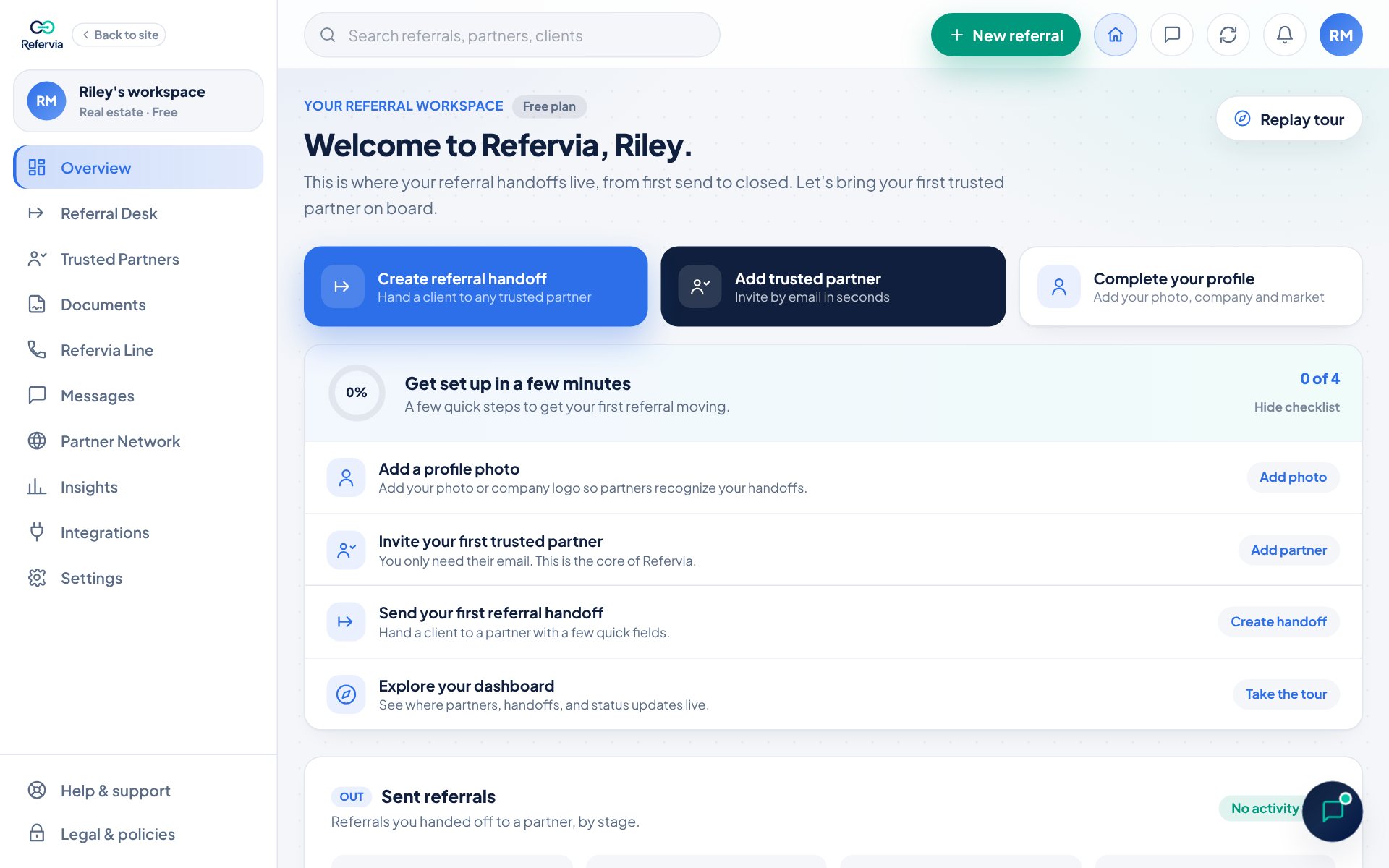
New to Refervia? This is how you create your account and land on your Overview. If a partner sent you an invite link, open that link instead and follow it.
Steps
- Go to refervia.com/signup.
- Under I am a, choose what you do: Real estate professional, Loan officer / mortgage, Insurance professional, Referral partner, Insurance agency (owner / admin) or Real estate brokerage (owner / admin).
- If you chose a team option, type your Agency name or Brokerage name.
- Click Sign up with Google. Or fill in Email and Password below it. (Signing up from a partner's or teammate's invite also asks for your first and last name.)
- Click Create free account (or Create account). Selecting it means you agree to the Terms of Service and acknowledge the Privacy Policy, as the line under the button says.
- On Confirm your email, open the email we sent and tap Confirm my email, on your phone or any device. Then come back to the sign-up page: it opens your Referral Desk by itself (or click I've confirmed it, continue). Rather stay on the page? Click Enter it here and type the code from the same email.
- On Set up your workspace, check your side (real estate or insurance), type your first and last name, and pick your Primary market. Click Save & continue.
- On Bring in your top referral partners, add a partner's email, or click Skip for now, take me to my dashboard.
Good to know
- Your password needs at least 8 characters. Any letters, numbers or symbols work, but one that has shown up in a data breach is turned down. A check appears under the field when you start typing and turns green once it's long enough.
- Under the button on the free sign up page there's an optional Pro offer. You don't have to do anything with it to sign up free.
- Opened the page inside Instagram or Facebook? Google sign-in doesn't work in those apps' browsers, so you'll see the email form only. Sign up with your email, or open the page in your phone's browser to use Google.
- The two quick questions on Set up your workspace are optional.
- Owners also see Invite your team on that page. You can click Skip inviting for now, bring my partners next.
- You can change your name and market later in Settings.
- Loan officers use the real estate side of Refervia and show as Loan officer in the Partner Network.
- You're not listed in the Partner Network until you fill out your network profile and save it. After that you can hide or show yourself any time. See Your Partner Network profile.
Trouble?
- "An account already exists for this email": Click Sign in as with your email, right under the message.
- "Choose what you do at the top first": Pick an option under I am a, then try again.
- "We're finishing a quick security check": Wait a few seconds and try again. If a box shows up above the button, tick it first.
- "That email link has expired or was already used": If you already confirmed, just sign in.
- No confirmation email: Check spam and promotions, then click send it again on the Confirm your email page. You can ask once a minute.
- "Not confirmed yet": Tap Confirm my email in the newest email from Refervia first, then come back.
- "That code didn't work": Use the code in the newest email from Refervia. Each new email has a new code.
Was this helpful?