Your profile is what partners see on your handoffs. Take two minutes to add a photo and check your details.
Steps
- Click Settings in the left menu. On a phone, tap Settings in the bottom bar.
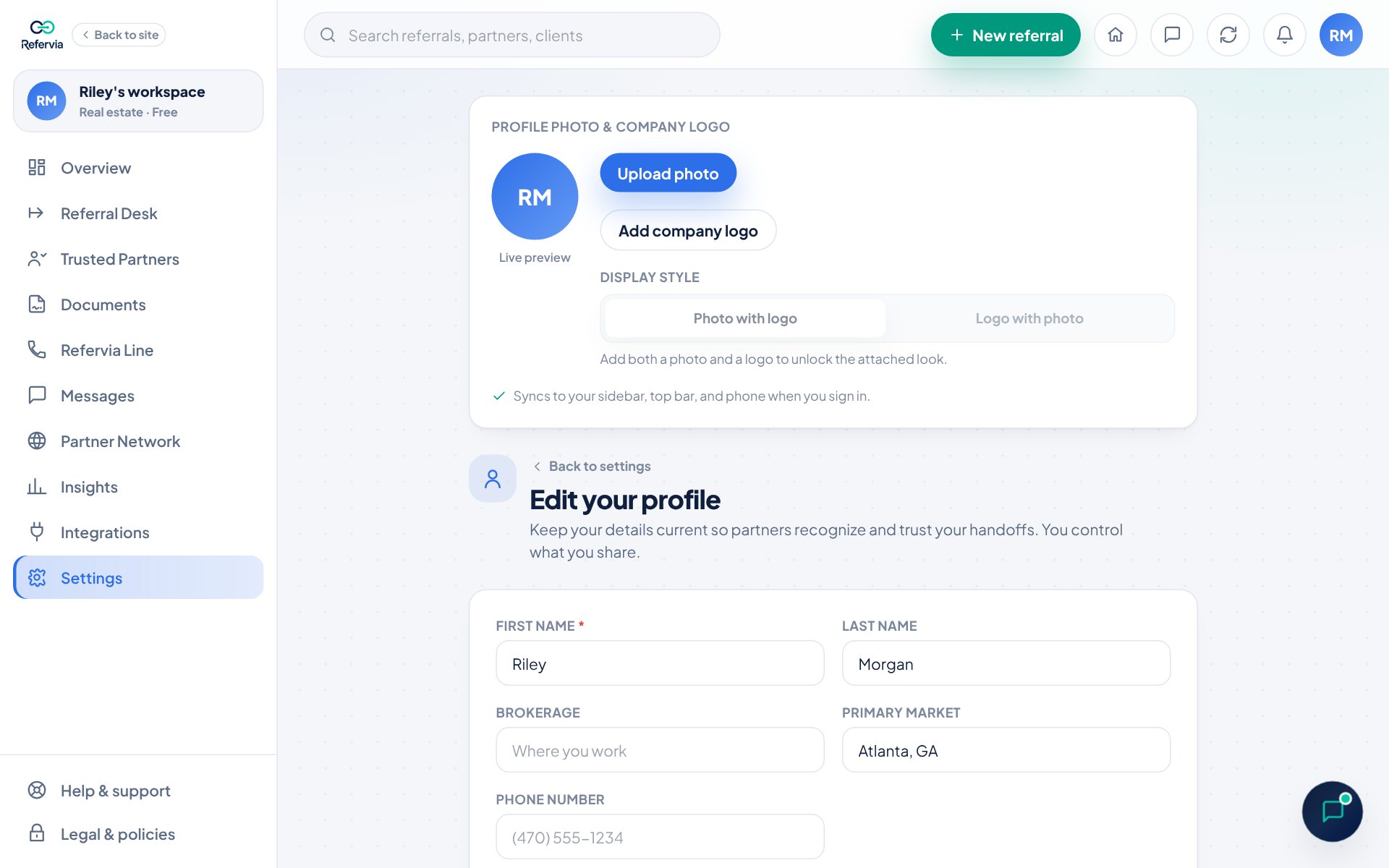
- Find the Profile photo & company logo card and click Upload photo.
- Pick a picture. Drag to move it and slide to zoom, then click Save photo.
- To add a logo, click Add company logo and pick an image.
- If you added both, choose a Display style: Photo with logo or Logo with photo.
- Scroll to the Profile card and click Edit profile.
- Fill in First name, Last name, Brokerage (or Agency), Primary market and Phone number.
- Click Save profile. You will see Profile saved.
- Scroll down to Your Partner Network profile. Set What you do, City, State, Preferred areas, Lines of business and a Short bio.
- Click Save network profile.
Good to know
- Quick way to add a photo: click your picture at the top right, then Upload photo.
- Your phone number is private. Partners only see it when you tap Share my number in Messages.
- Your email is not on this form. It is the email you sign in with.
- Adding a photo or logo checks off Add a profile photo on your getting started list.
- On a team, your owner may set the company logo. It shows with a lock and updates on its own when they change it.
- Your Partner Network profile is what other members see when they browse the Partner Network. Preferred areas and lines of business are preferences, not a promise of referrals. See Your Partner Network profile.
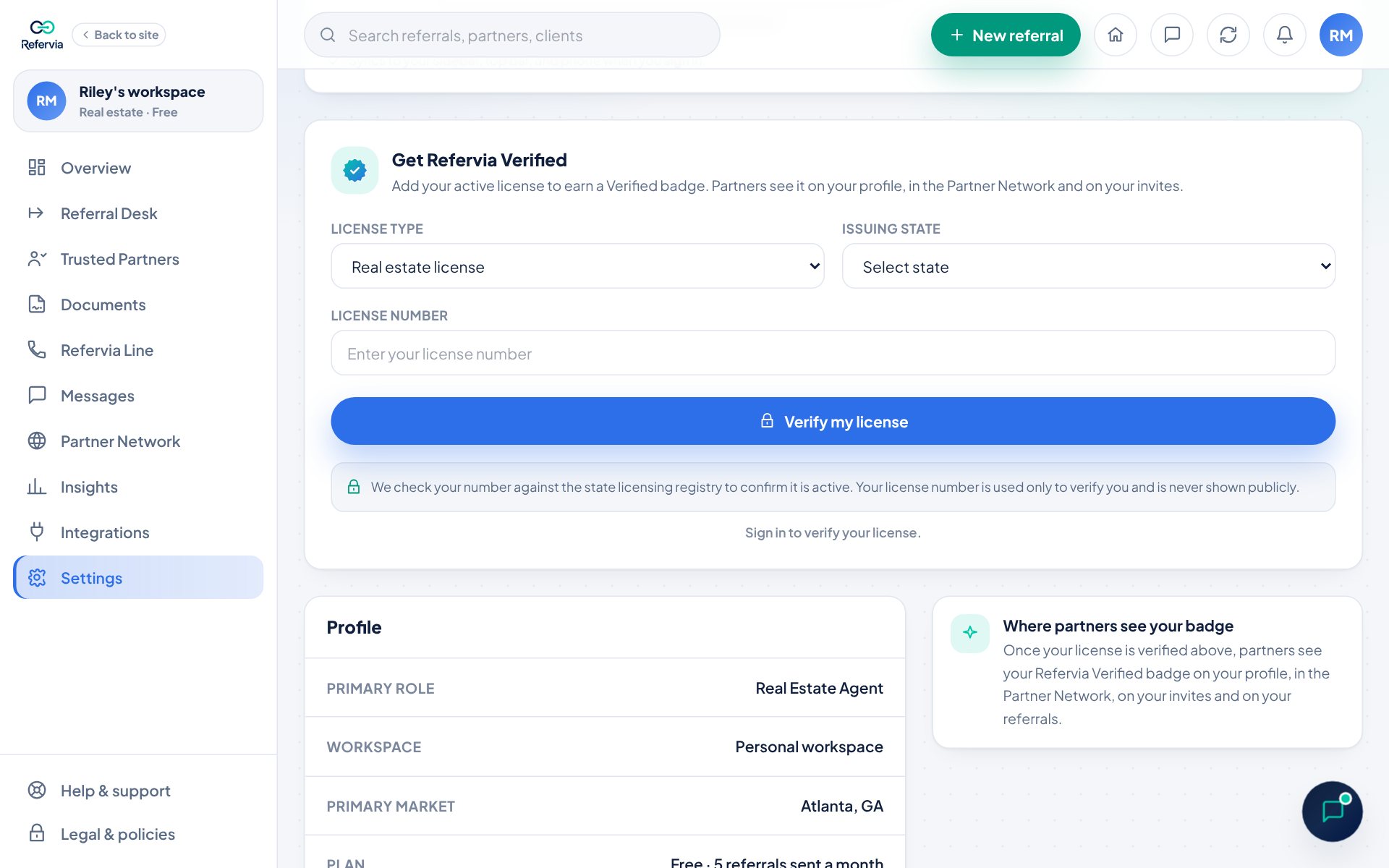
- You can also earn a Verified badge. In Settings, find Get Refervia Verified. Real estate licenses are checked right away; insurance licenses are reviewed by hand, usually within 24 to 72 hours. See Verify your license.
Trouble?
- My photo is missing on another device: Sign in on that device. Your photo syncs when you sign in.
- The Display style buttons are grayed out: Add both a photo and a logo first.
- "Verification limit reached": Wait until the date shown, or click Contact support so the team can check it by hand.
Was this helpful?