Your Partner Network profile is what other Refervia members see when they browse the Partner Network. You stay hidden until you fill out your network profile and save it. After that you are listed, and you can hide yourself any time.
Steps
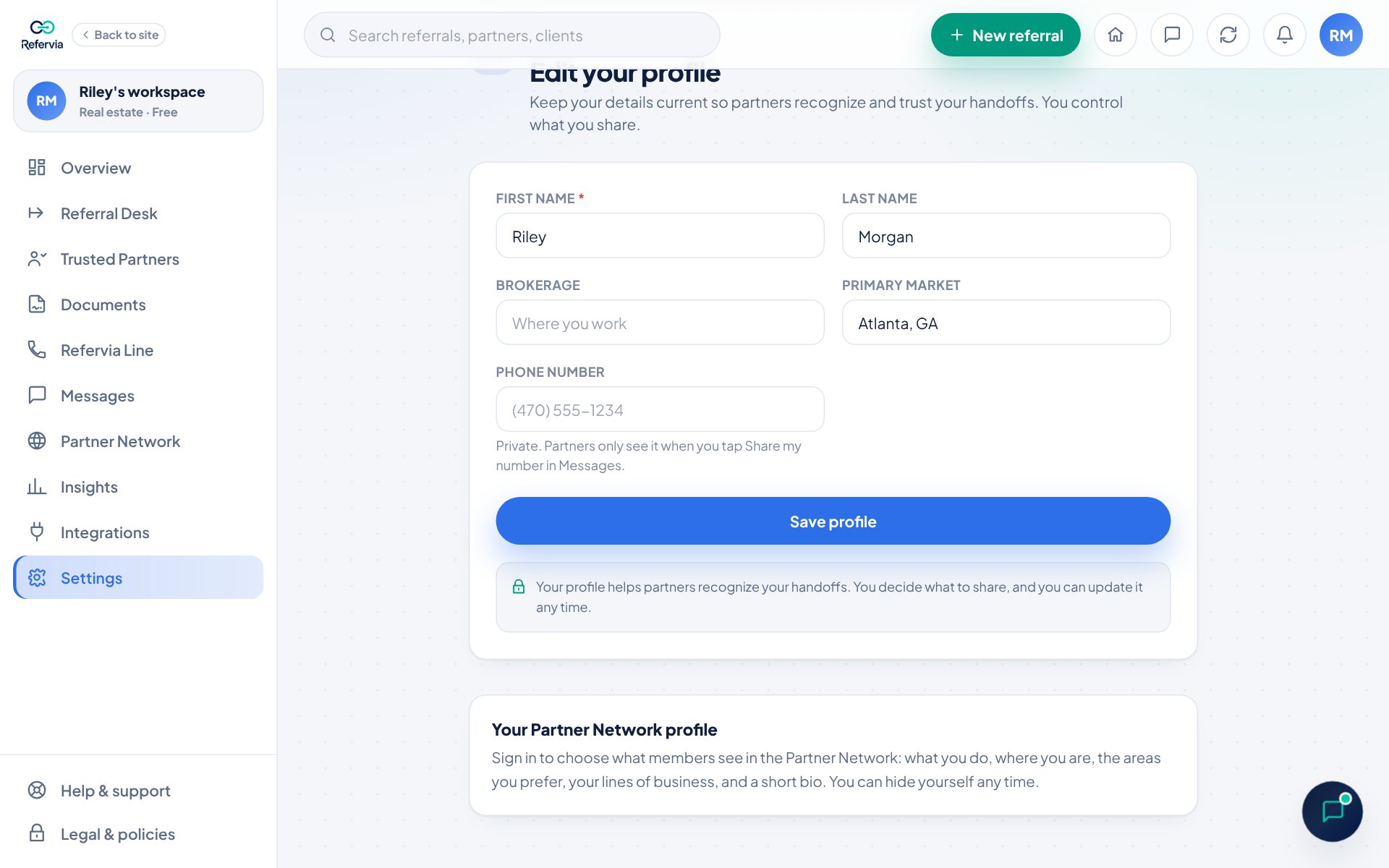
- Click Settings in the left menu, then Edit profile. Or click Edit my network profile at the top of the Partner Network page.
- Scroll to Your Partner Network profile.
- Pick What you do, for example Real estate agent, Loan officer, Insurance agent or Title / escrow.
- Fill in your City and pick your State.
- Under Preferred areas, type a state, city or ZIP and press Enter. Add as many as you like, up to 20.
- Under Lines of business, tap all that apply.
- Write a Short bio: a sentence or two about who you help.
- Leave Show me in the Partner Network on to be listed, or turn it off to hide.
- Click Save network profile.
Hide or show yourself fast
- Click Partner Network in the left menu.
- The box at the top says whether you are listed.
- Click Hide me or Show me.
Team owners
Brokerage and agency owners also see a company listing with Company city, Areas your team prefers, Lines of business, About your brokerage or agency, and Website. Your company is what shows in the Partner Network, once you fill out the company profile and save it. Use Show my company in the Partner Network to list or hide it.
Good to know
- Preferred areas and lines of business are preferences shown to members. They are not a promise of referrals.
- Hiding yourself does not affect your current partners.
- Your bio can be up to 280 characters.
- Your Verified badge shows on your card once your license is confirmed. Your license number is never shown.
- Members can filter by location and profession, so adding your city, state and what you do helps people find you.
Trouble?
- "Help partners find you": You are missing what you do or your city and state. Click Complete my profile.
- "You will be listed once you finish setting up your account": Finish the setup steps after sign up first.
- "You are hidden until you fill out your network profile": Click Fill out my network profile, fill it in and click Save network profile.
Was this helpful?