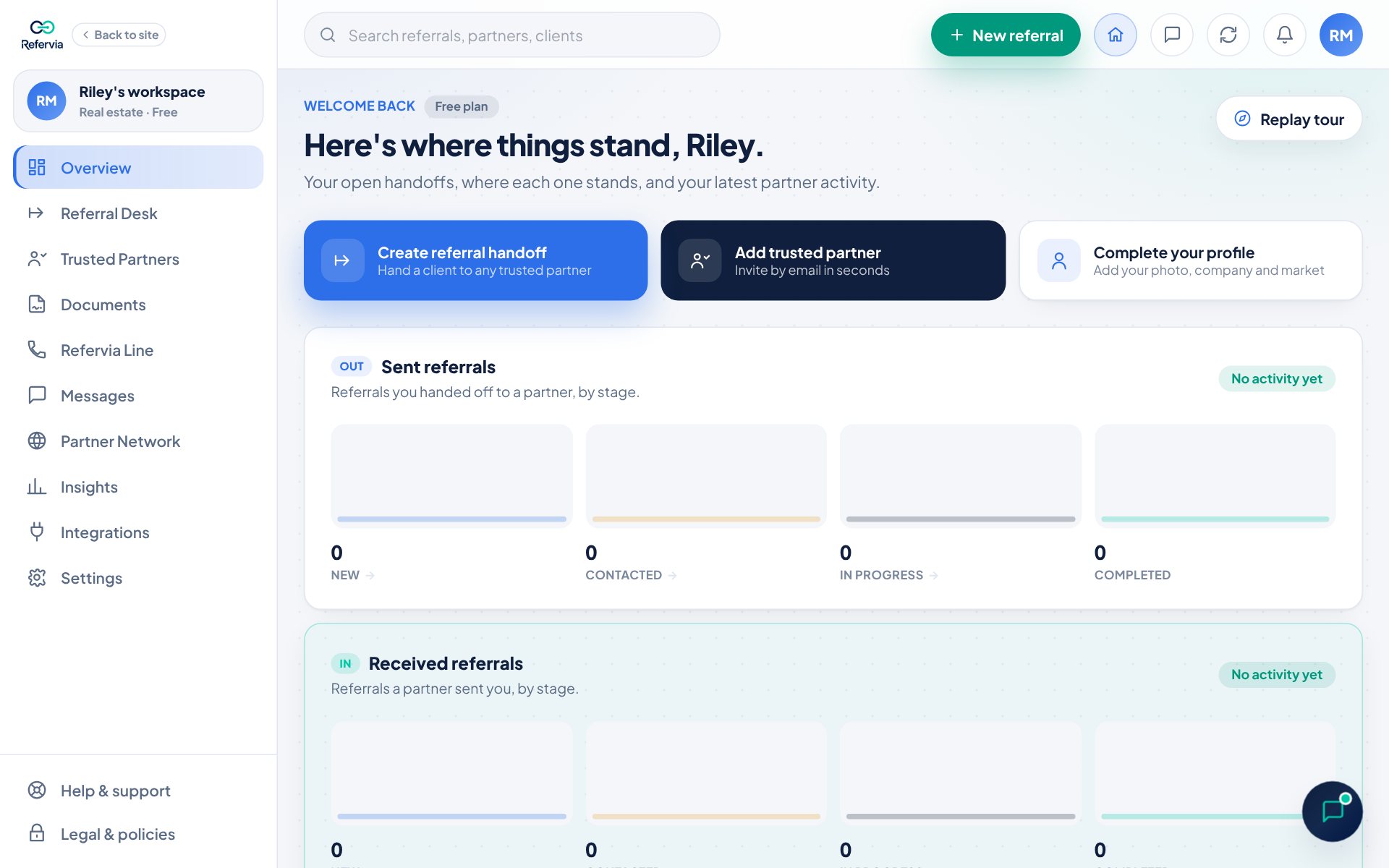
Your Overview is the page you land on after you sign in. Your Referral Desk has every referral you send and receive. A short guided tour shows you around, and you can replay it any time.
Steps
- Click Overview in the left menu.
- Click Take the tour (or Replay tour) at the top right of the page.
- Click Next to go to the next step. Click Back to go back.
- Want it read aloud? Click Play in the tour box.
- Click Finish on the last step, or Skip tour to close it early.
Good to know
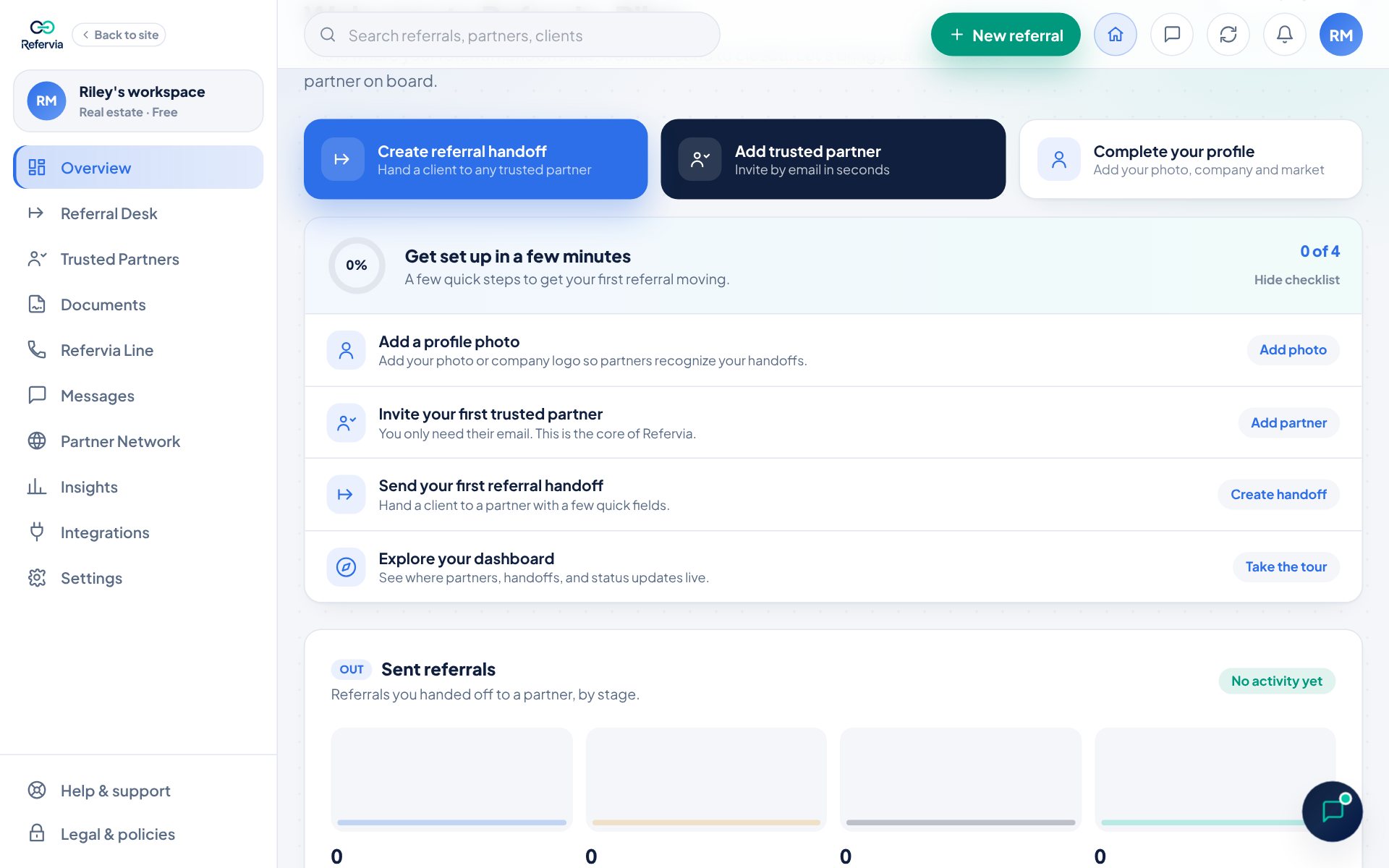
- Three quick action buttons sit near the top: Create referral handoff (insurance shows Send a referral), Add trusted partner, and Complete your profile. Owners see Invite a team member instead.
- Get set up in a few minutes is your starter checklist. Steps check off as you finish them. Click Dismiss setup to hide it.
- Sent referrals and Received referrals show how many handoffs are at each stage.
- Open referrals lists your latest open handoffs. Click one to open it, or click View all for the full list.
- Trusted Partners shows the people you work with.
- Referral handoffs this month shows how much of your plan you have used. Click Manage plan to see your plan.
- Recent activity and your all-time stats (Referrals sent, Referrals received, Completed, Trusted Partners) are at the bottom.
- The top bar has the green New referral button, the house (it takes you back to your Overview from any page), Messages, notifications (the bell), and your picture. Click your picture for Settings, Help & support, and Log out.
- The left menu has Overview, Referral Desk, Trusted Partners, Documents, Refervia Line, Messages, Partner Network, Insights, Integrations and Settings. Team accounts also see Team, Team Referral Queue and Team Reports, and affiliates see Affiliate. Help & support and Legal & policies sit at the bottom.
- Every other page has its own Take the tour button too. It replays that page's tour.
Trouble?
- The tour did not open on its own: It opens by itself only once, on your first visit. Click Take the tour or Replay tour.
- No sound on a phone: Tap Tap to listen in the tour box, and check that your phone is not on silent.
- The checklist is gone: You finished every step or clicked Dismiss setup. Everything is still in the left menu.
Was this helpful?