Use this when you have a client who needs help from someone you trust. A referral handoff always goes to one of your Trusted Partners.
Before you start
You need at least one Trusted Partner. If you have none, the form shows Add a trusted partner first and a button to add one.
Steps
- Click the green New referral button at the top right. On a phone it is the green + button at the top.
- Type the Client first name and Client last name.
- Add the Client email and Client phone if you have them.
- Pick a Referral type, like Homeowners, Auto, Life, Buyer lead, Seller referral, Purchase loan or Refinance.
- Fill in any extra details that appear for that type. They are optional, but they help your partner respond faster.
- Under Send to partner, choose your Trusted Partner.
- Pick an Urgency if you want: Same-day, This week, Closing soon or Flexible.
- Add Notes for your partner with anything that helps.
- Click Send referral handoff.
- In the Before you send pop-up, read the referral-fee rules for this handoff (scroll to the end), tick the box to confirm your client agreed to be referred, and click Accept and send. This pop-up comes up every time you send, and nothing goes out until you accept. Cancel takes you back to the form.
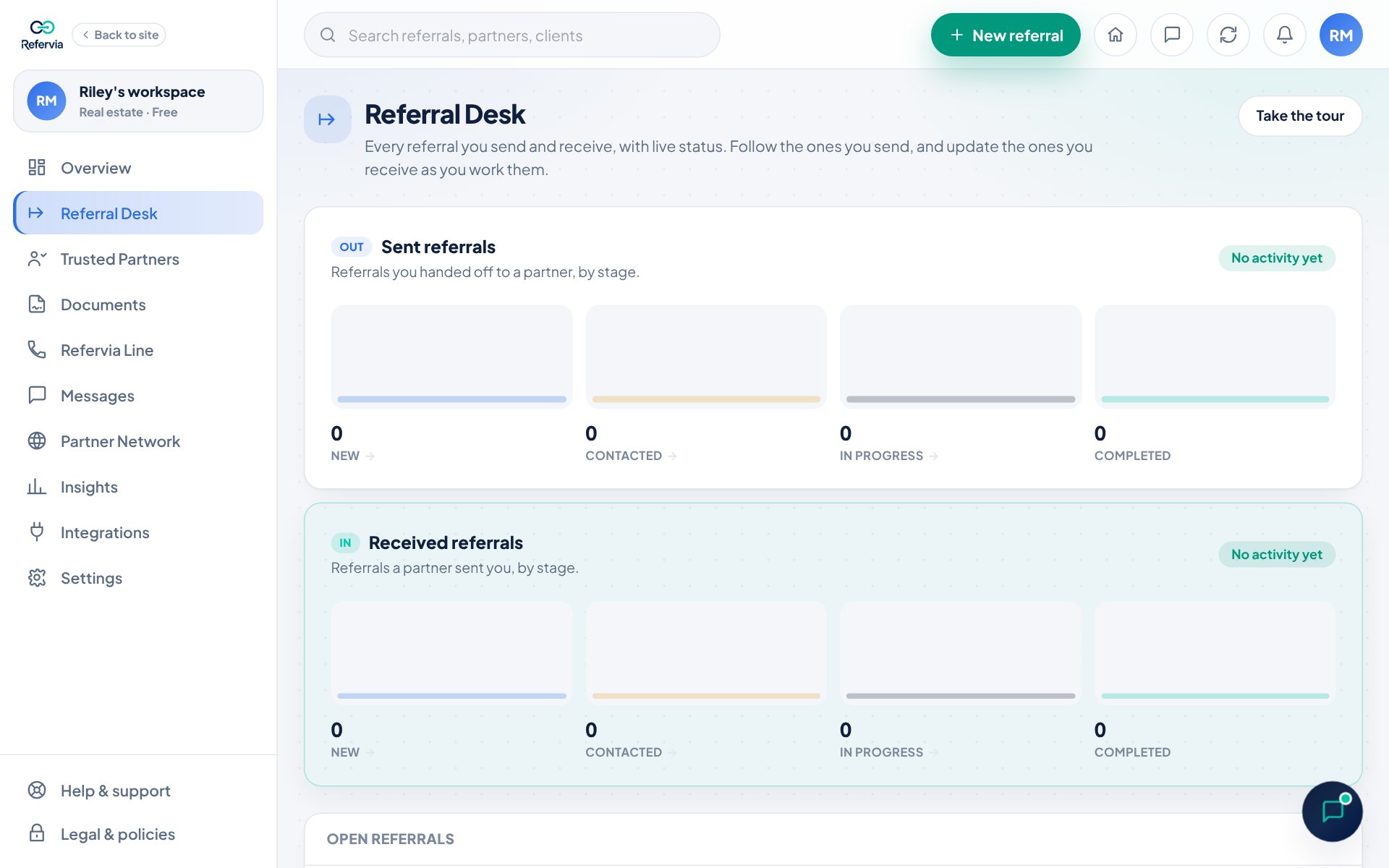
You will see Referral handoff sent. It's on your Referral Desk with a New status. Follow its progress there.
Referral fees and your client's OK
The rules depend on the Referral type, what you do and where you and your partner work: federal rules (RESPA) everywhere, Georgia's own rules when either of you works there, and a general version for other states. Refervia keeps what you confirmed, and when, on the referral. You and your partner both see it under Client consent.
These are reminders, not legal advice. Refervia never takes, calculates or handles referral fees. Every rule, and what the box says in Georgia, is in Handoff checks.
Other ways to start
- Open Trusted Partners in the left menu and click Send referral on a partner's card. The form opens with that partner already picked.
- On a phone, open Referrals in the bottom bar and tap Send referral.
After you send it
Click the client's name on your Referral Desk to open the referral. From there you can:
- Click Message and your partner's name to talk about it (plans with messaging). The message box starts with the client's name already typed. Their Verified badge shows next to it if their license is confirmed.
- Set a Follow-up: Tomorrow, In 3 days, Next week, or pick a date. Refervia reminds you in the app that day. Only you see it.
- Click the pencil (Edit referral) at the top to fix the details, then Save changes. Your partner is not notified of corrections.
Good to know
- Your partner controls the working status. While it is open you can use Send reminder (once a day) or Withdraw.
- If your partner has not joined Refervia yet, the referral waits for them. You will see Resend invite instead of Send reminder.
- Received referrals never count toward a plan limit.
Save it as a draft
Not ready to send? Fill in what you have and click Save as draft under the send button. Nothing is sent, nobody is told, and a draft doesn't count toward your plan until you send it. Your drafts wait on your Referral Desk under Drafts, with Review and send. See Referral drafts.
Share a status link with your client (Pro and up)
Open the referral, and under Client status link click Turn on, then Copy link and send it to your client. Their private page shows their first name, your partner's name and business, the referral type and the status, never phone numbers or emails. See Client status link.
Automatic reminders (Pro and up)
If your partner hasn't marked it Contacted 24 hours after you sent it, Refervia reminds them by email and in the app. If it's still New at 48 hours, you get No contact yet, with Send to someone else. Nothing goes out between 8 PM and 8 AM Eastern. See Automatic reminders.
Send it to someone else
It's there on any plan while a referral you sent is still New, and after your partner declines one.
- Open the referral on your Referral Desk, or click the link in the "No contact yet" notice.
- Click Send to someone else.
- Check the details (they're filled in from the first handoff), pick another partner under Send to, and click Send to this partner. Accept the Before you send pop-up, as with any referral.
- The new handoff lands on your Referral Desk with a New status. If the first one was still open, that partner's copy is withdrawn and they're told.
Trouble?
- "My partner is not in the list": They may be paused or labeled Do Not Route. Click Show them above the form. If they are not your Trusted Partner yet, add them first.
- "It says I've used all the referrals included in my plan this month": Upgrade on Plan & billing in Settings, or sendSend again after the limit resets on the 1st.
- "Please fill in...": A required field is empty.
- "We didn't email your referral": Your partner asked Refervia not to email them, or email to their address bounces, so the referral wasn't emailed. It's still on your Referral Desk. If you invited them, click Copy link on their card in Trusted Partners and send it to them yourself. If they don't have an account, call or text them the details. Or open the referral and click Send to someone else.
Was this helpful?