On Pro, Pro Max, Brokerage, Agency and Enterprise you get one link you can share anywhere. People open it, say who's sending, and fill in a short form. Your clients and friends send without an account. Real estate, mortgage and insurance pros create a free Refervia account in about 30 seconds (or log in) and become your trusted partner. Every referral lands on your Referral Desk.
Steps
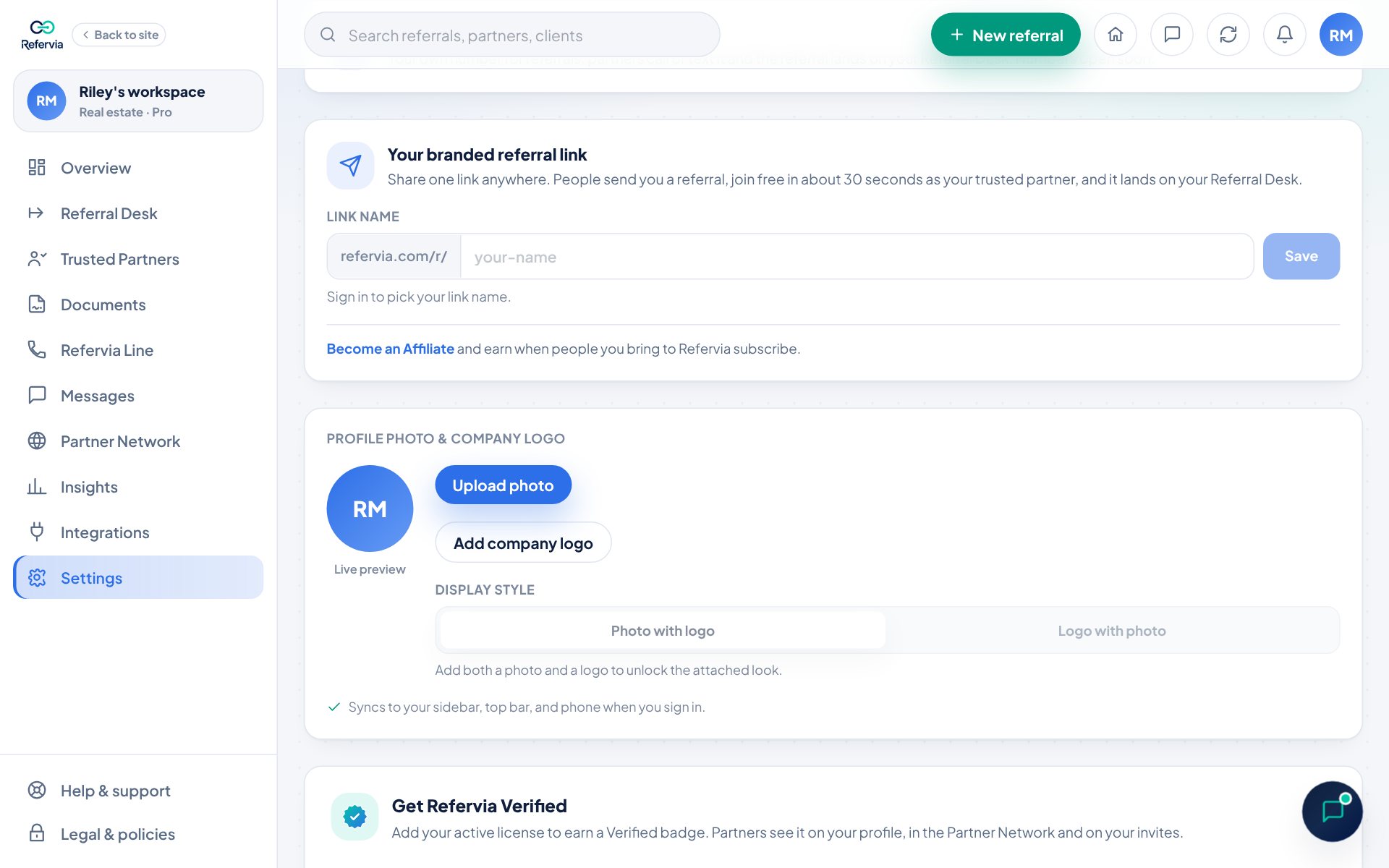
- On your Overview, tap Create on the Your referral link card. It opens Settings right at your link. (You can also click Settings in the left menu.)
- Find the Your branded referral link card.
- Type a Link name, like your name. You can use letters, numbers and dashes, 3 to 32 characters.
- Wait for "Looks good. This link name is free."
- Click Save. You will see "Saved. Your link is live."
- Under Your link, click Copy.
- Paste the link into your email signature, your bio, or a text.
Once it is saved, your link shows on your Overview. Tap it to copy it any time.
What people see
- Your page shows your photo, name, profession, company, Preferred areas, Lines of business and bio from your Partner Network profile, plus your Verified badge if your license is confirmed. If you added both a photo and a company logo, your photo shows first with your logo as a small badge on it.
- Before anything can be typed, the Send (your name) a referral card asks Who's sending this?:
- A client or friend of (your name): "Recommend someone you know. No account needed."
- A real estate, mortgage or insurance pro: they send from a free Refervia account and track it with you.
- Another business: car dealers, builders, attorneys, CPAs and more. No account needed. After they pick, the card shows Sending as with Change, and the form opens.
- The form asks for the Client name, Client phone and Client email (one of the two is enough), a Referral type and a Short note. For a client or friend it reads Who you're referring, Their name, Their phone, Their email and What do they need? Picking a type shows the same optional detail fields as your own New referral form (for example, property address and current carrier for Homeowners), and they show up in the referral on your Referral Desk.
- When they click send, a Before you send pop-up shows the referral-fee rules for that referral type (federal RESPA, and Georgia's rules when you work in Georgia). They have to accept it: scroll through the rules and tick the box confirming the person they're referring agreed to be referred to you and to have their contact details shared. You see what they confirmed under Client consent when you open the referral.
- A pro then sees a pop-up that says Become (your name)'s trusted partner and asks for their first name and email.
- New to Refervia? They finish a free account in about 30 seconds: last name, what they do, and a password. The referral goes to you as soon as the account is created. Once they confirm their email, you are Trusted Partners automatically, and you both get a notice.
- Already on Refervia? They tap I already have an account, enter their email and password, and the referral goes to you. You are Trusted Partners right away. If no account matches their email, the pop-up says so and offers the free signup.
- Either way they can tap Continue with Google instead. They come back to your page and the referral sends automatically.
- On the same device, Refervia remembers them: if they are still signed in, the next referral sends with one tap, and if not, the pop-up opens on log in with their email filled in.
- The page tells them Refervia never sells client or customer data and is not a lead marketplace.
Clients and friends
Past clients, friends and family can send you someone they know without making an account.
- They pick A client or friend of (your name), fill in who they're referring, and tap send.
- The pop-up asks for Your name and Your email. They tap Email me a code and type the 6-digit code from their email.
- The referral goes to you from them, marked Client or friend, with their email confirmed. They're not added to your Trusted Partners.
- That device stays confirmed, so next time they just fill in who they're referring and tap send. Not you? under the button signs that device out.
- If their email already has a Refervia account, the pop-up asks them to log in instead.
Car dealers and other businesses
Some people who send you clients aren't real estate, lending or insurance pros, like a car dealer with a buyer who needs auto insurance. They send without an account too.
- They pick Another business. In the pop-up's What do you do? they choose Car dealer, Builder / contractor, Property manager, Financial advisor, Attorney, CPA / accountant, Home inspector, Mover, or Other (they type what they do).
- They enter their first name and email, tap Email me a code, and type the 6-digit code from their email.
- The referral goes to you, and they're added to your Trusted Partners as a contact (no account).
- That device stays confirmed, so next time they just fill in the client and tap send. Not you? under the button signs that device out.
- If their email already has a Refervia account, the pop-up asks them to log in instead.
- In your Trusted Partners they show with a By email tag.
- When you send them a referral, they get an email with the client's name, phone, email, referral type and your note. Replying reaches you directly. Send reminder sends that email again.
- They don't have a dashboard, so you track the status on your Referral Desk. Pause and Do Not Route work the same as for any partner.
When a referral comes in
- It lands on your Referral Desk with a notice in the bell and an email.
- Open it to see Sent through your branded referral link, with who sent it and their email and phone. For a client or friend, or a car dealer or other business, it also shows who they are (Client or friend, or their line of work) and that their email is confirmed.
- Work it like any received referral.
Good to know
- To change your link, type a new Link name and click Save. The old link stops working.
- To turn it off, clear the Link name and click Turn off.
- On Free, the card shows Upgrade to Pro. On Brokerage Free or Agency Free, owners see Upgrade to Brokerage or Upgrade to Agency, and Team Members see that their team owner can add it.
- If you paused someone or labeled them Do Not Route, sending you a referral does not reconnect them.
Trouble?
- "That link name is taken. Please pick another.": Try adding a word, like your city.
- "That link name is reserved. Please pick another.": Some names are kept for Refervia. Pick another.
- "This referral link is not active": The link name was changed or turned off. Share your current link.
Was this helpful?