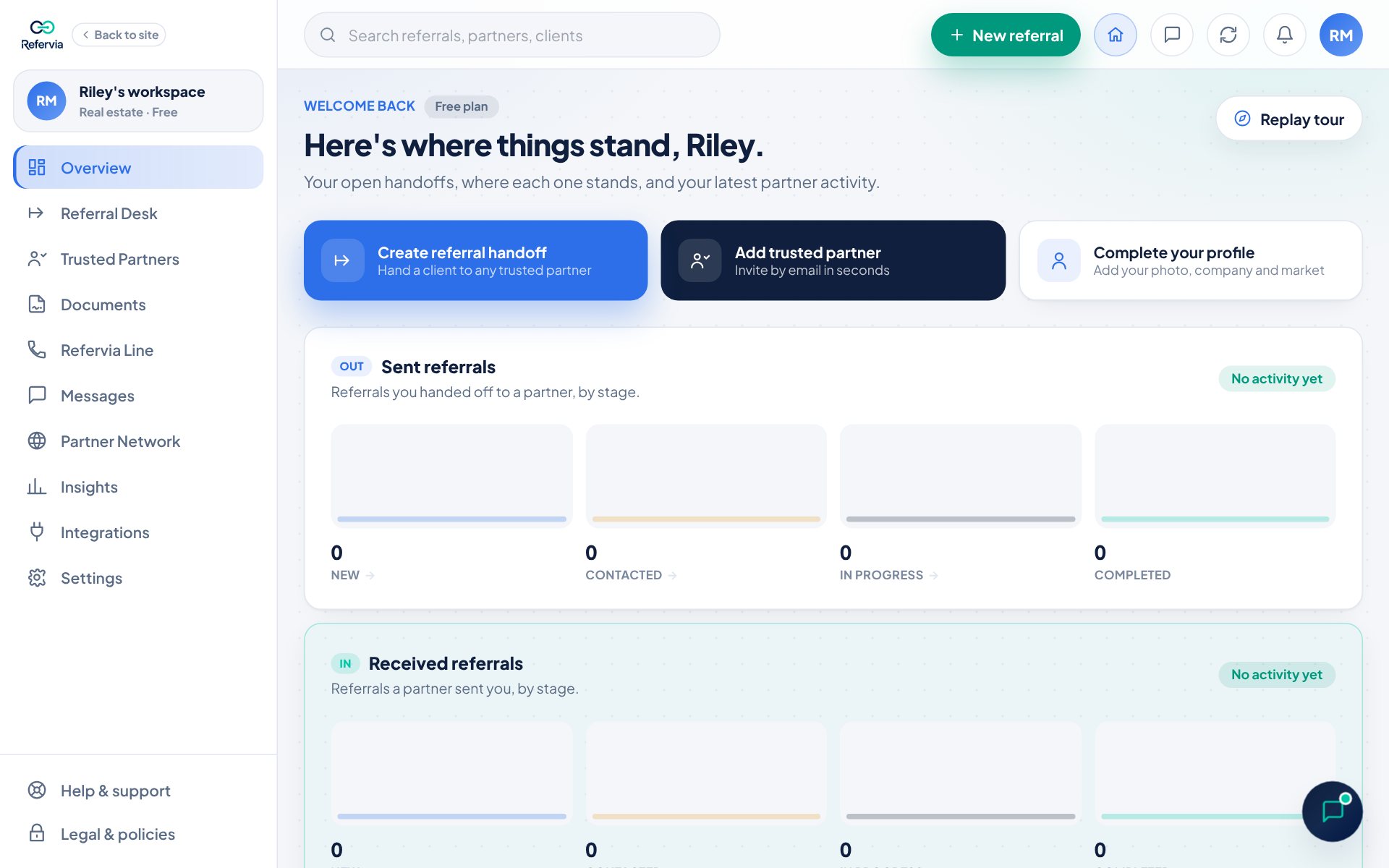
Messages are private chats with your connected Trusted Partners and, on a team, your Team Members. The bell shows referral and partner updates as they happen.
Before you start
Messaging is included on Pro, Pro Max, Brokerage, Agency and Enterprise plans. Brokerage Free and Agency Free include team chats plus a few partner messages. You can only message partners who are connected with you.
Send a message
- Click the chat bubble icon at the top right. On a computer you can also open Messages in the left menu.
- Click New above your conversations. On a phone it is the + button.
- Pick a partner under Message a connected partner.
- Type in the Message box. Pressing Enter adds a new line.
- Click the send button to the right of the box.
You can also click Message on a partner's card in Trusted Partners, or Message and their name inside a referral. From a referral, the message box starts with "About" and the client's name, so your partner knows which client you mean. On a team, use Team Message to chat with a teammate.
Share your number, email or a photo
- Open a conversation and click the + to the left of the Message box.
- Click Share my number. The first time, type your number and click Save & share. After that it is one click. You can also add or change it in Settings under Edit profile.
- Click Share my email to send the email you sign in with.
- Click Photo to pick up to 6 photos from your phone or computer. They show in the message box first. Click x on one to remove it, then click the send button.
Your partner sees your number with Call and Copy buttons, and your email with Email and Copy. Your number stays private until you share it.
Check notifications
- Look at the bell at the top right. A number means you have unread updates.
- Click the bell to see the list.
- Click a notification to jump to the page it is about.
- Click Mark all read to clear the number. Closing the list also marks what you saw as read.
- Click View all activity for the full history.
Turn push notifications on or off
Push notifications pop up on your computer or phone even when Refervia isn't open. The bell, the number on your browser tab and important emails are always on.
- Open Settings and find Notifications. You can also click the gear at the top of the bell's list.
- Flip Computer push notifications or Mobile push notifications on or off. Each switch covers all your computers, or all your phones and tablets.
- Turning a switch on while you're on that kind of device asks your browser to allow notifications. Click Allow.
- On an iPhone or iPad, add Refervia to your Home Screen first, then open it from there and tap Allow. Turn on notifications on your phone walks through it for Safari and Chrome, with animated examples.
Good to know
- Both icons update live. You do not need to refresh.
- On a computer, new updates also pop up at the top of the screen for a few seconds.
- New messages show on the chat bubble, not the bell.
- The bell also shows when someone asks to connect in the Partner Network, when a follow-up date you set is due, and when a partner agreement or a document is waiting for your signature. On Pro and up, it tells you No contact yet when a referral you sent is still New two days later (see Automatic reminders).
- Phone numbers, emails and web links in any message can be tapped to call, email or open them.
- Click a photo to see it full screen. Photos are private to the conversation.
- Search with Search names or words in messages, or pick a day next to On.
- To delete your own message, click the trash icon next to it, then Delete. Deleting a photo removes it for both of you.
- To remove a conversation, swipe it left on a phone. On a computer, press, hold and drag it left. The other person keeps their copy.
- On Brokerage Free or Agency Free, Team Member chats are unlimited. You get 5 partner messages per month, and the count resets on the 1st. Each photo or shared number or email counts as one. Deleting a message does not give it back.
Trouble?
- "I see Messaging is a paid feature": Click View plans and choose a plan that includes messaging.
- "It says Upgrade to reply": Your plan can read messages but not send them. Upgrade on Plan & billing in Settings.
- "My partner is not in the New list": They have not accepted your partner invite yet. Only connected partners appear.
- "It asks me to add my number": You haven't saved one yet. Type it once and click Save & share, or add it in Settings under Edit profile.
- "A photo won't send": Photos must be JPG, PNG, WebP or GIF. Check your connection, then click Try again under it.
- "Notifications don't pop up": Check that the switch is on in Settings under Notifications. If it says notifications are blocked in this browser, allow them for Refervia in your browser's site settings.
- "I click Turn on and nothing happens": Your browser didn't show its question. Chrome stops asking for a while after its question has been closed a few times, and can show only a small bell in the address bar instead. Refervia then shows how to allow notifications by hand. In Chrome, click the icon just left of refervia.com in the address bar, open Site settings and set Notifications to Allow. In Safari on a Mac, open Settings, then Websites, then Notifications. Each browser keeps its own setting for each web address, so turn them on once in every browser you use.
Was this helpful?