Use this to bring the referrals you're already working on into Refervia from a spreadsheet, or to take your referrals out to your CRM or a spreadsheet.
Import your current referrals
- Open Referral Desk in the left menu. On a phone, tap Referrals in the bottom bar.
- Click Import referrals at the top of the page.
- Click Choose a CSV file, or drop the file on it. In Excel or Google Sheets, save or download your sheet as CSV first. No sheet yet? Click Download the template: it has every column.
- Check Match your columns. Refervia matches what it can: client name (or first and last), email and phone, referral type, status, sent or received, date, partner name and email, and notes. Change any that's wrong. Only the client's name is a must.
- If your file uses its own words for a status, like Hot, pick what each one means under Words we didn't recognize.
- Look over your rows. A row that needs a fix says why, and it's skipped.
- Click Import. The button says how many, like Import 48 referrals.
The window says how many came in and lists any rows that were skipped, so you can fix them in your file and import those again. Undo this import takes them all back off your desk. Earlier imports are under Your imports when you open Import referrals again.
What happens when you import
- Nobody is contacted: no email and no notification goes to your partners or clients. Only you see imported referrals, and they say Imported on your desk.
- They don't count toward your monthly referral limit. Insights, give and get, Year in Referrals and Team Reports count only what happens in Refervia, so imported referrals stay out of them.
- You keep an imported referral's status current yourself. When a row has a partner's email that matches one of your trusted partners, the referral is linked to them, but they don't see it.
- Each plan can import a set number of referrals: Free 50, Pro 250, Pro Max 750, Brokerage Free and Agency Free 150, Brokerage and Agency 1,500, and Enterprise 5,000. On team plans the whole team shares the number. Undoing an import gives the room back.
- A file can have up to 10,000 rows and be up to 5 MB.
Export your referrals
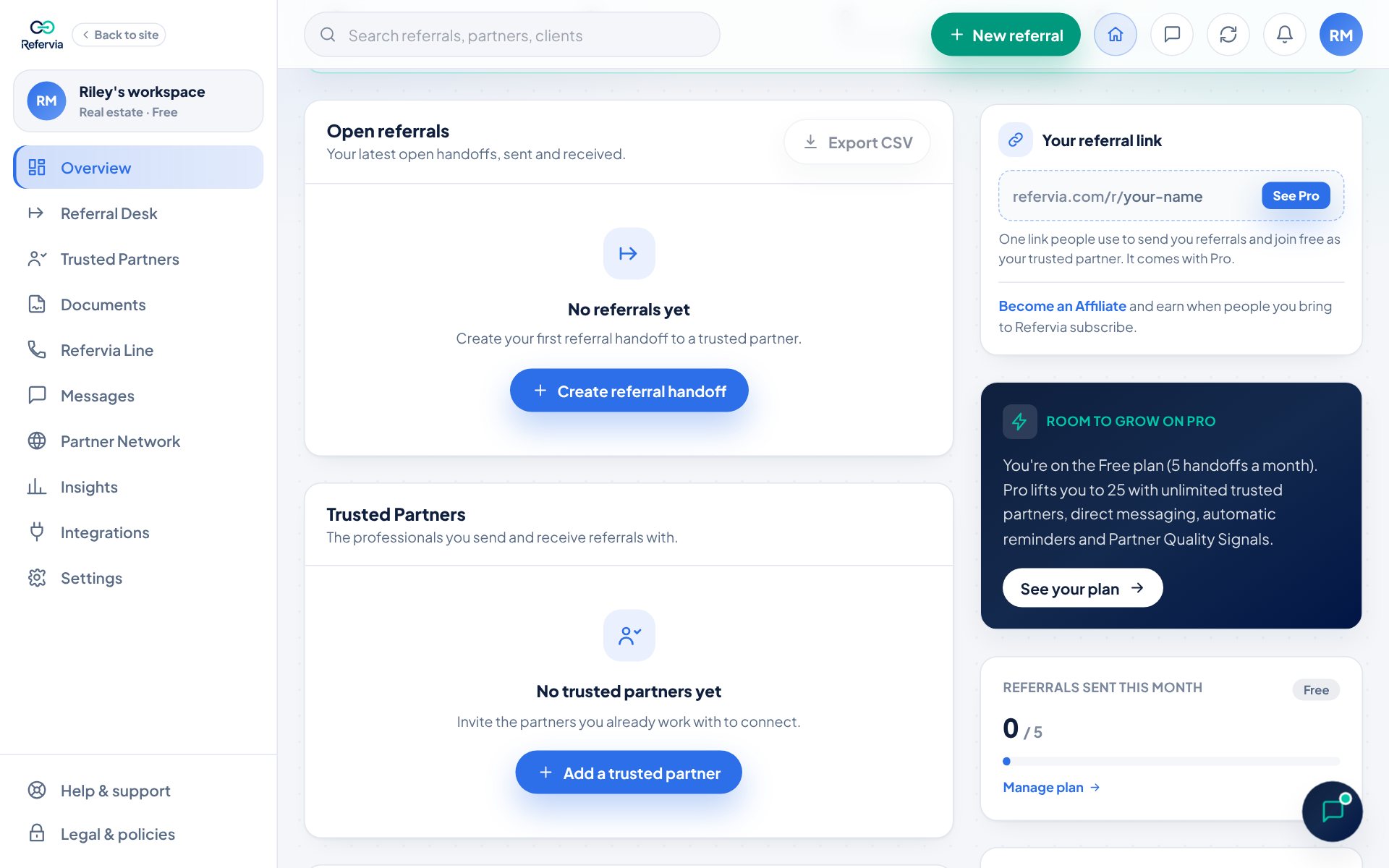
- Open Overview in the left menu. On a phone, tap Overview in the bottom bar.
- Find the Open referrals card.
- Click Export CSV at the top right of that card. On a phone it is the small download arrow button.
- Check the number shown under Export Referral Desk, like "12 referrals ready to export".
- Click Download CSV.
Your browser saves the file. You will see Referral CSV exported successfully with the number of records.
What is in the file
- One row for every referral on your Referral Desk, sent and received, open and closed.
- Column names a CRM can read, like lead_full_name, lead_email, lead_phone, referral_category, status, urgency, created_at and updated_at.
- referral_path says if a referral was Sent or Received.
- Your partner's name is in assigned_to_name for referrals you sent, and in referred_by_name for referrals you received.
- Some columns are empty for now. They are there so the layout stays the same.
The file is named like refervia-referral-desk-export-2026-10-07.csv. Team accounts get the team name in the file name instead.
Good to know
- The file opens in Excel, Google Sheets and most CRMs.
- It is saved only to your device. Refervia does not email it to anyone.
- CSV export and import are included on every plan.
- For automatic syncing instead of manual files, see Connect your CRM.
Trouble?
- "That's a spreadsheet file, not a CSV": In Excel, choose File, Save As, then CSV. In Google Sheets, choose File, Download, then Comma-separated values. Then choose that file.
- "Some rows were skipped": Each one says why, like a missing client name or a date in the future. Fix them in your file, then import just those rows.
- The Import button is greyed out: No rows are ready yet, or the file has more rows than your plan has room for. The window says which.
- "The Export CSV button is greyed out": You have no referrals yet. Send or receive a referral first.
- "We could not export the CSV": Try again. If your browser blocks downloads, allow them for Refervia.
Was this helpful?