Use this to keep a copy of your referrals, make a privacy request, or close your account for good.
Export your referrals
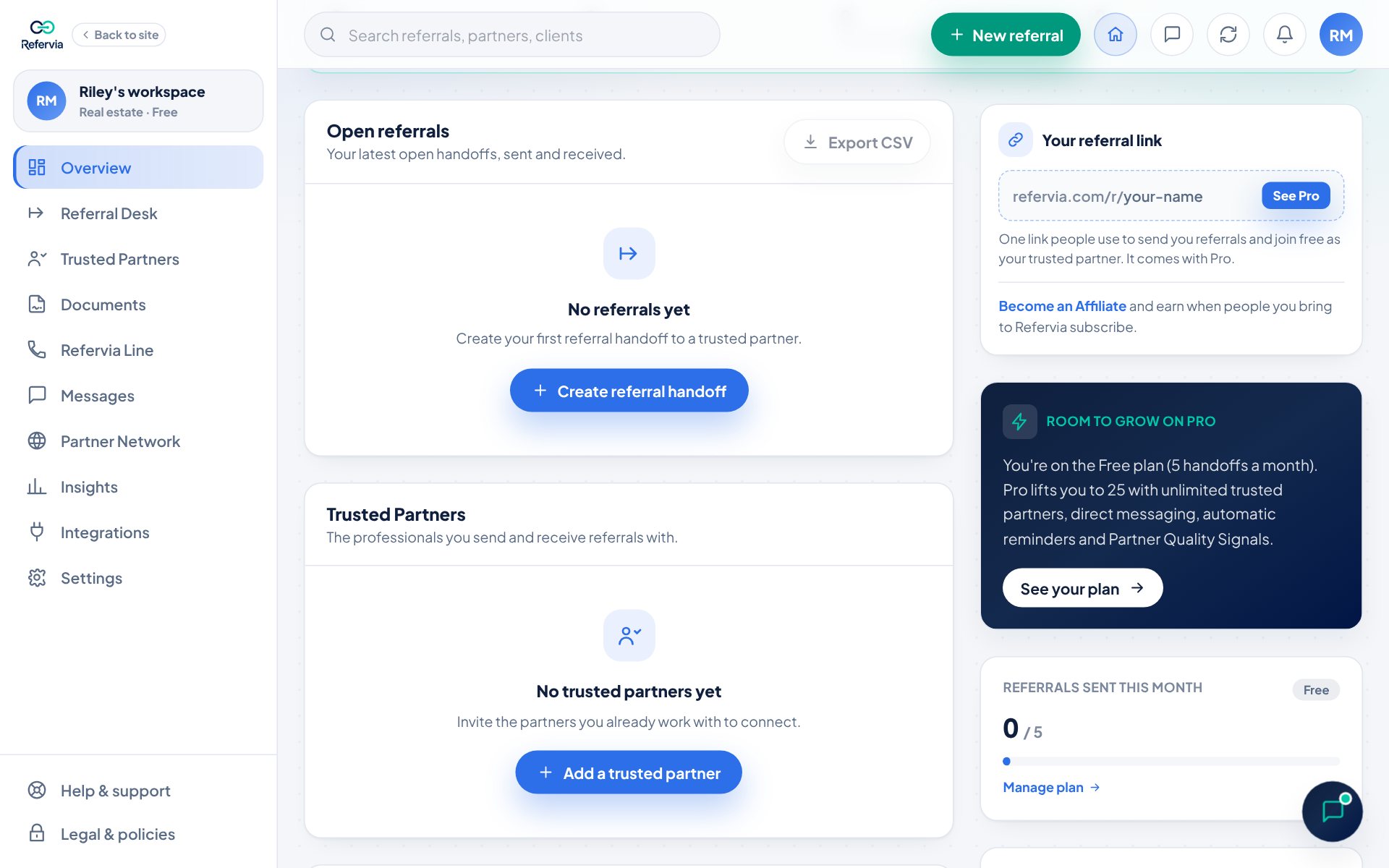
- Open Overview in the left menu.
- On the Open referrals card, click Export CSV. On a phone, it shows as a download icon.
- In the Export Referral Desk window, click Download CSV.
Ask for a full data copy
The CSV covers your referral list. For a full copy of your account data, a correction, or any other privacy request:
- Open Help & support at the bottom of the left menu. On a phone, tap your photo at the top right, then Help & support.
- In Open a support ticket, set Category to Data & privacy.
- Describe what you need and click Submit ticket.
You can also email operations@refervia.com from the email on your account. The team checks it is really you before acting.
Delete your account
- Export anything you want to keep first.
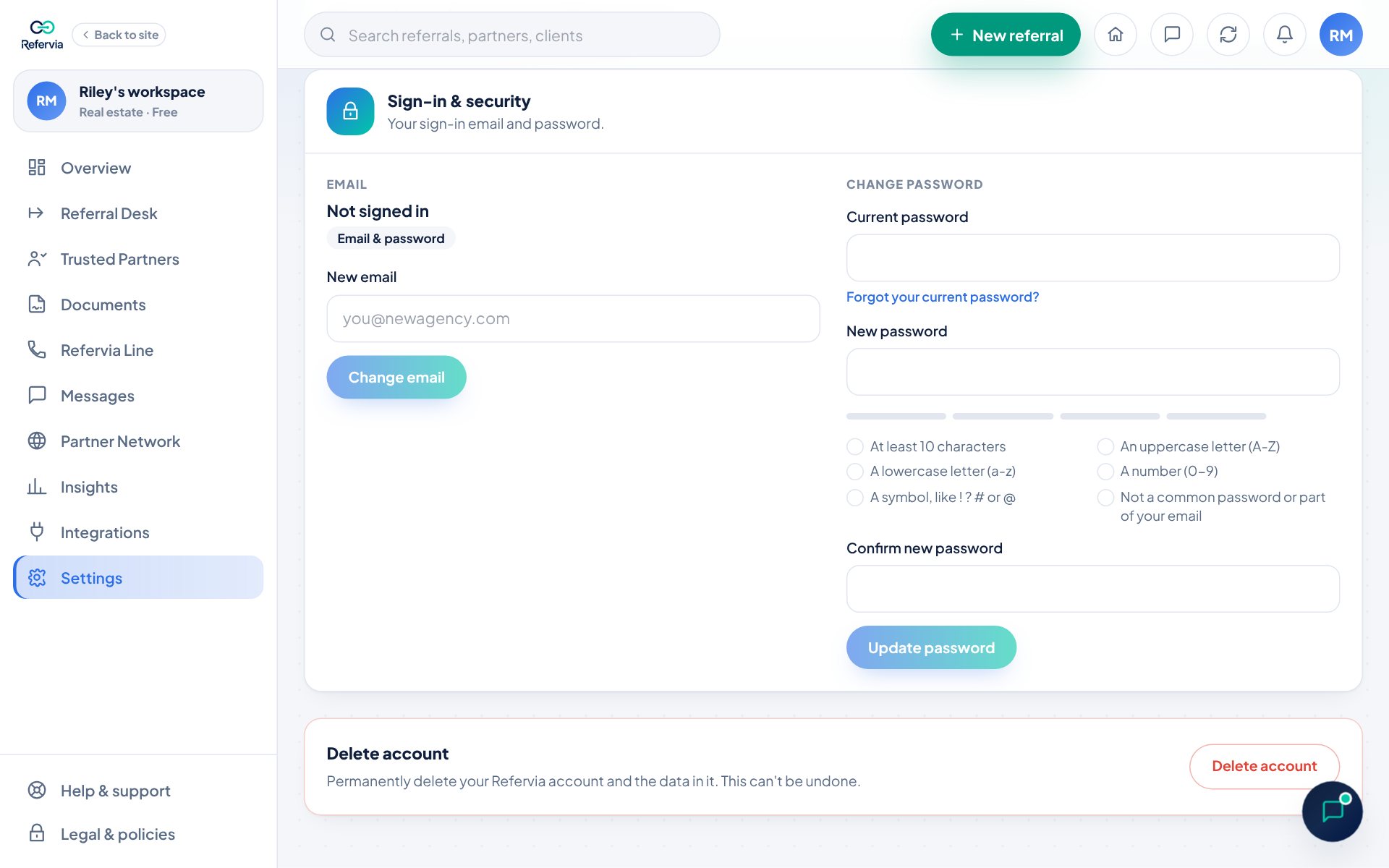
- Open Settings in the left menu. On a phone, tap Settings in the bottom bar.
- Scroll to the bottom and click Delete account.
- Read what will be removed, then click Continue.
- Type DELETE in the box.
- Tick I understand my account and its data will be deleted permanently and can't be recovered.
- Click Delete my account permanently.
Good to know
- Deleting removes your profile, settings and sign-in, your Trusted Partners list and connections, the referrals you sent and their history, and your messages and support conversations.
- Referrals partners sent you stay in their accounts, because they own those client records.
- Deletion happens right away. It can't be undone, but you can create a new account later.
- Full policies live under Legal & policies at the bottom of the left menu, including Your Privacy Choices.
Trouble?
- "Export CSV is grayed out": You have no referrals yet. Send or receive one first.
- "It says I own a team with other members": Remove your Team Members from the Team page first, or contact support to transfer ownership.
- "I changed my mind": Click Keep my account or Cancel before the last step. Nothing is deleted until then.
Was this helpful?