There are two ways to get help inside Refervia: the chat assistant for quick answers, and a support ticket when a person needs to look at your account.
Ask the assistant
- Click the round chat button at the bottom right of any dashboard page.
- Type your question in the Ask about Refervia... box and send it.
- Read the answer. Many answers include a link straight to the right page.
- Tap Yes or No under Was this helpful?. A No shows other topics that may fit.
- For account questions, the assistant shows Open a support ticket. Tap it to fill in a short ticket right in the chat.
Open a ticket from the Help page
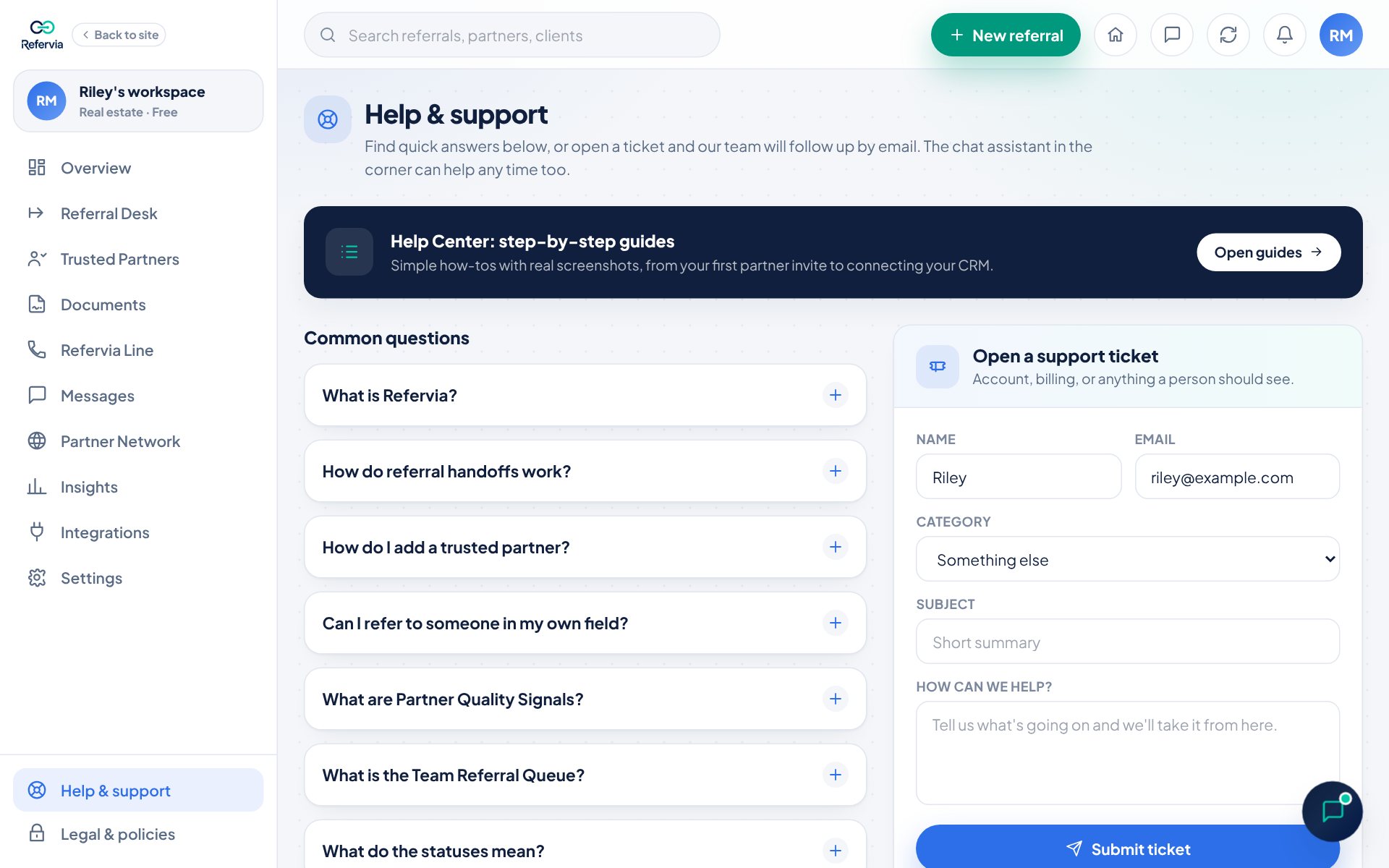
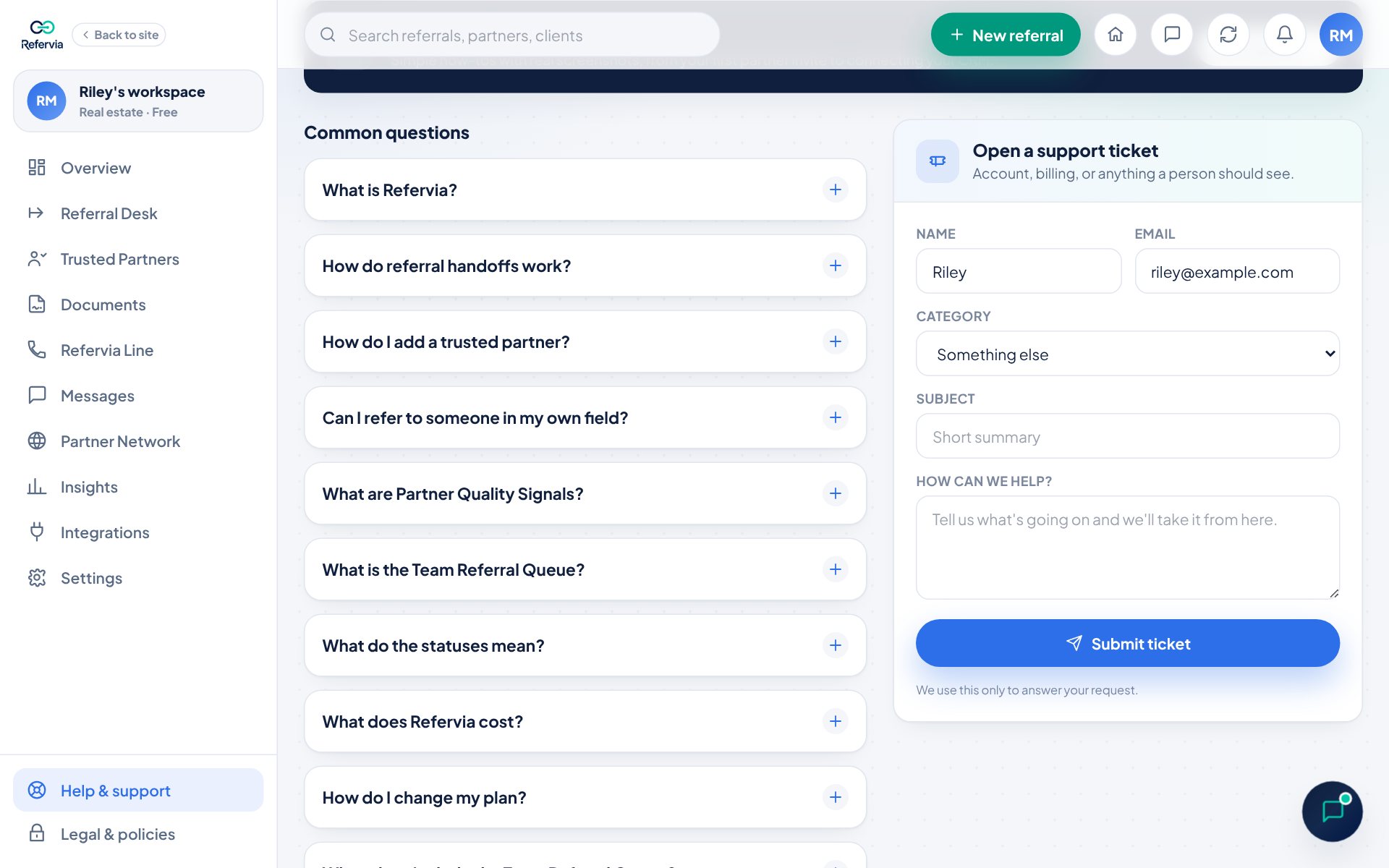
- Open Help & support at the bottom of the left menu. On a phone, tap your photo at the top right, then Help & support.
- Skim Common questions first. Your answer may already be there.
- In Open a support ticket, check your Name and Email.
- Pick a Category, such as Billing & payments, Account & login or Technical issue.
- Add a short Subject and explain the problem in How can we help?.
- Choose who reads it. Leave Let Refervia's AI support team (powered by Anthropic, an AI company) help answer this ticket unticked, and only a person on our team reads your ticket. Tick it, and our AI support team also reads your ticket and your account details (read-only) to help write the reply; anything they can't answer goes to a person.
- Click Submit ticket. You get a reference that starts with RV-.
Chat live with our support team
- Ask the assistant for a person. When the support team is taking chats, tap Chat with our support team now.
- The first time, a screen explains who you'd be chatting with. Jeff, Nina and Andre are AI, not people. To write their replies, Refervia sends Anthropic, an AI company, your name, what you type in the chat, what you asked the assistant, and your account details. Tap Agree and chat to start, or Email a person instead to send a ticket that only a person on our team reads.
- If everyone on the team is helping someone, you see your place in line, how long you've waited and who's on the team. Keep the chat open: the first one free takes your chat.
- Jeff, Nina or Andre joins and says they're AI in their first message. Anything they can't answer goes to a person on our team, and you get a ticket number when it does.
- Because you're signed in, they can look at your account to answer questions about it: your plan, how many referrals you've sent this month, your referrals, partners and team. They never change anything in your account.
Once you agree, you aren't asked before every chat. To see or change your answer, open Settings, then AI permission.
On refervia.com the chat works the same way, and when you aren't signed in, the screen asks each time. To let the team look at your account there, tap Verify my account and enter your account email, date of birth and phone number. Add your date of birth first in Settings, then Edit profile, under Date of birth for support. Never type your date of birth or phone number in the chat itself.
Your AI permission
Settings, then AI permission, shows what you've agreed to and when:
- Live chat with the AI support team: tap Agree so chats start right away, or Withdraw so each chat asks you first. Withdrawing also takes the AI support team off tickets where you ticked the box, and a person answers them.
- AI write-ups on your Line, on plans with the Refervia Line. See Your Refervia Line.
What goes to Anthropic, and how long Anthropic keeps it, is in the Privacy Policy.
Follow your ticket
Your tickets are listed under Your tickets on the same page. Click one to see the full thread. Each ticket shows a status:
- Open: the team has your ticket and has not replied yet.
- Answered: Refervia Support replied. Open the ticket to read it.
- Closed: the ticket is finished.
To add more detail, type in Add a reply and click Send reply.
Good to know
- Support hours are Monday to Friday 9 to 5 and Saturday 9 to 1, Eastern Time. The chat header shows if the team is online.
- The assistant answers instantly, any hour. A real person reads every ticket and replies by email. Tick the box on the form to let the AI support team help too; they always say they're AI.
- Tickets from Pro Max, Brokerage, Agency and Enterprise are marked Priority and handled first.
- A support reply also shows in the notification bell at the top right.
- Only the support team changes a ticket's status.
- You can also email support@refervia.com.
Trouble?
- "I can't reply to my ticket": It is Closed. Open a new ticket if you still need help.
- "I can't sign in to open a ticket": Click Get help under the sign-in form, or email support@refervia.com.
- "The chat asks for my OK again": On refervia.com it asks each time you aren't signed in. In the app it asks again after you withdraw in Settings, then AI permission, or when what we send to Anthropic changes.
- "I want a person, not the AI": Tap Email a person instead on the chat's screen, or open a ticket and leave the AI box unticked.
- "It didn't verify my account": Check that you used the email on your Refervia account and the date of birth saved in Settings, then Edit profile. Each chat allows three tries. Without the phone number on your account, the team can share counts and statuses but not names, dates or billing. Signing in and chatting from Help & support always works.
- "I don't see the chat button": It hides while a pop-up window is open, and on the Messages page on a phone. Close the window or go to another page. On a phone, it sits just above the bottom bar.
Was this helpful?