Use this if you can't get into your Referral Desk, forgot your password, or want to change how you sign in.
Sign in
- Go to the Refervia sign-in page. It says Welcome back.
- If you joined with Google, click Continue with Google.
- Otherwise, type your Email and Password.
- Click Sign in.
Reset a forgotten password
- On the sign-in page, click Forgot password? next to the Password box.
- Type the email you sign in with.
- Click Send reset link.
- Open the email from Refervia and click the link. It works once and expires soon.
- Type a New password, then type it again in Confirm new password.
- Click Update password. You land on your dashboard.
Change your password or email
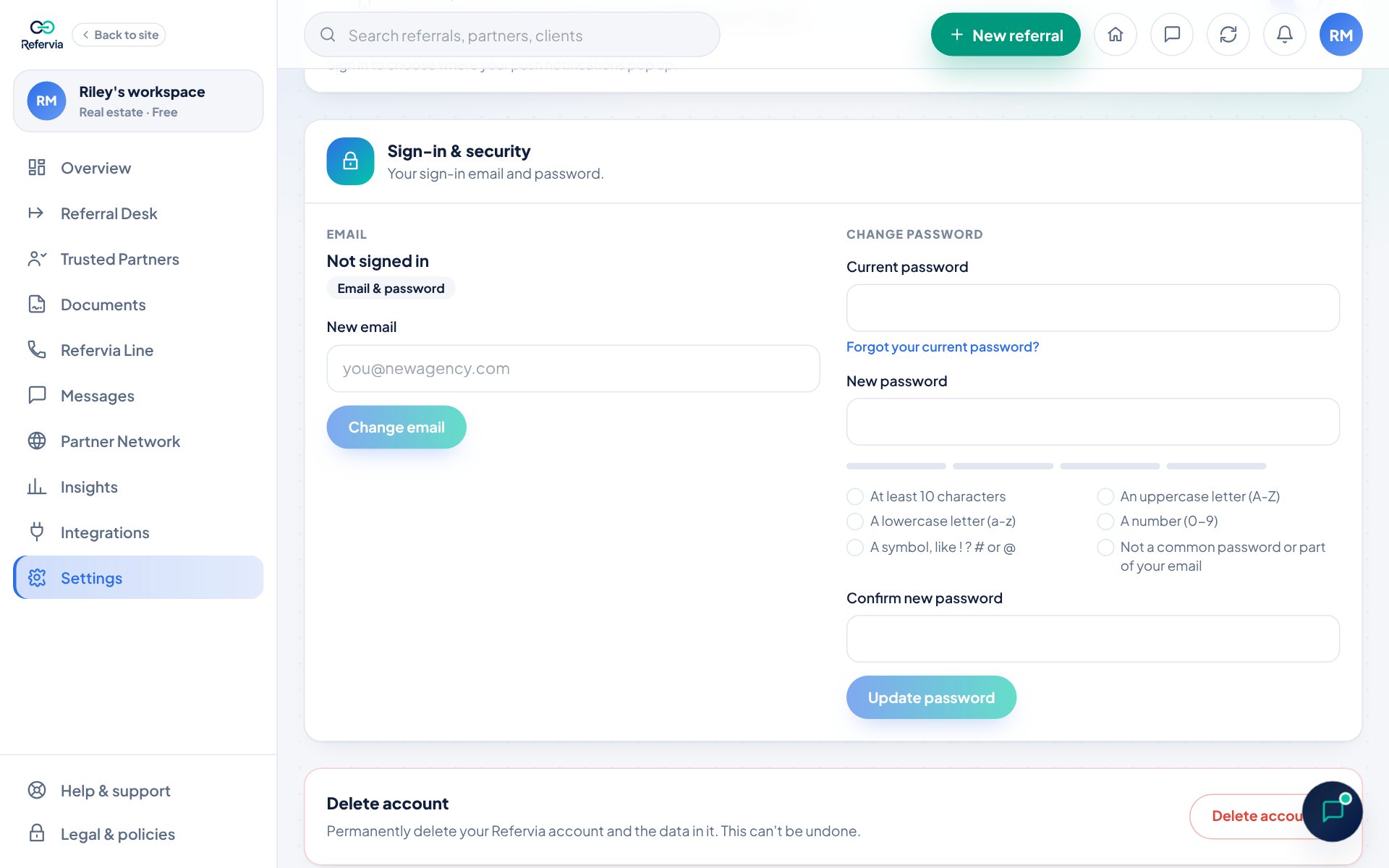
- Open Settings in the left menu. On a phone, tap Settings in the bottom bar.
- Scroll to Sign-in & security.
- To change your password, fill in Current password, New password and Confirm new password. Click Update password.
- If asked, type the 6-digit code from your email and click Confirm and save.
- To change your email, type it in New email and click Change email. Then click the confirmation link sent to the new address.
Good to know
- A password needs at least 8 characters, and it can't be one that has shown up in a data breach. A check under the field turns green once it's long enough.
- Signed up with Google? You can add a password under Add a password to also sign in with your email.
- Your email only changes after you confirm the link.
- To sign out, click your photo at the top right, then Log out.
Trouble?
- "My reset link says it expired": Links work once. Click Send a new reset link and use the newest email.
- "No reset email came": Wait a minute and check spam. Make sure you typed the email you sign in with.
- "Please confirm your email first": Your account is waiting on the confirmation email from when you signed up. Tap Confirm my email in it, or click Send the confirmation email again under the message and use the newest one.
- "Too many requests": Wait a minute, then try again.
- "I signed up with Google and have no password": Use Continue with Google instead.
- Still stuck? Click Get help under the sign-in form, or email support@refervia.com.
Was this helpful?