The Refervia Verified badge tells partners your active license was confirmed. Partners see it on your profile, your Partner Network card, your invites, inside referrals, and on your team's roster.
Steps
- Click Settings in the left menu.
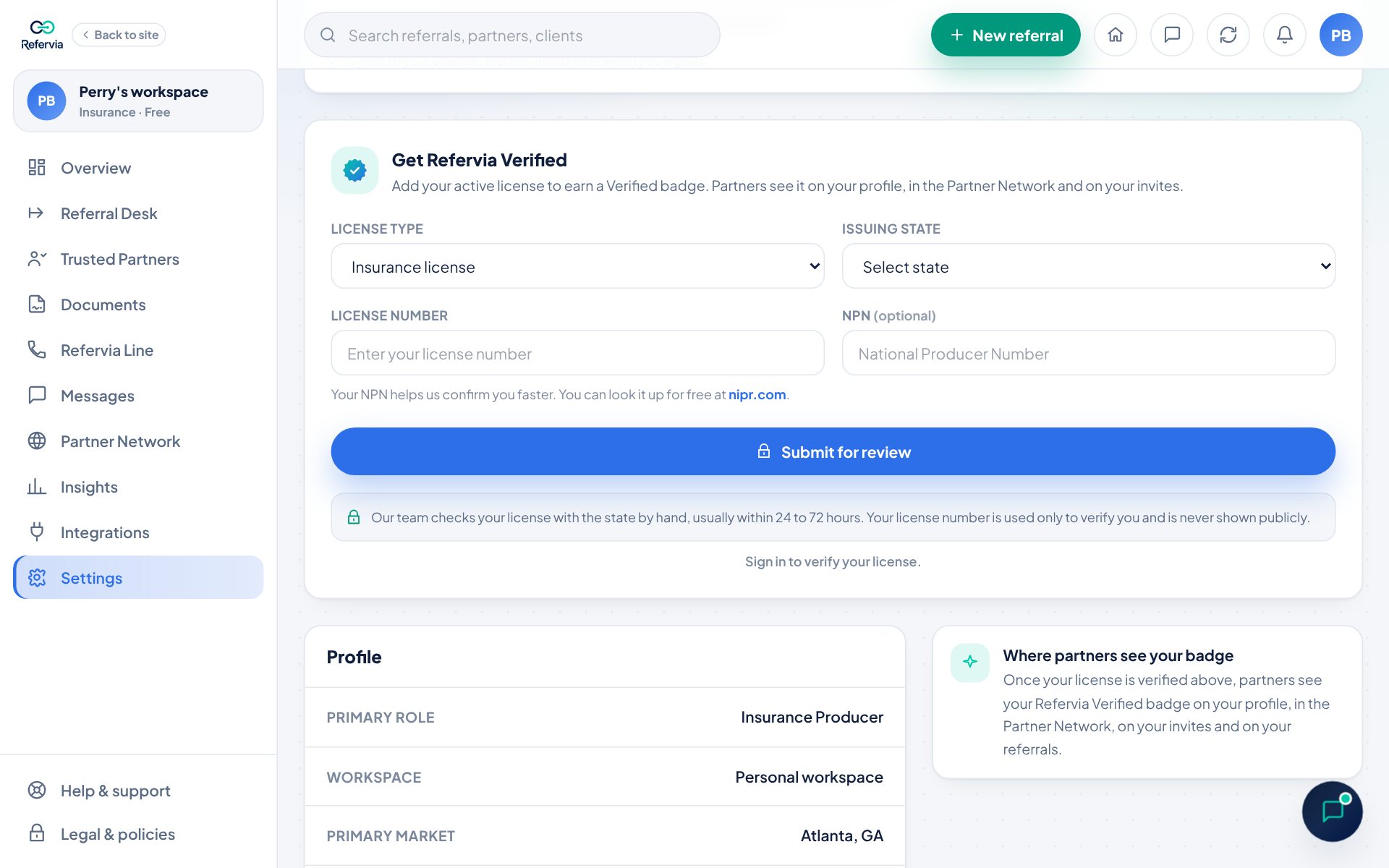
- Find the Get Refervia Verified card.
- Pick your License type: Real estate license, Broker license or Insurance license.
- Pick your Issuing state.
- Type your License number.
- Insurance only: add your NPN (National Producer Number) if you have it. It is optional but helps us confirm you faster.
- Click Verify my license (real estate) or Submit for review (insurance).
What happens next
- Real estate and broker licenses: we check your number against the state licensing registry right away. When it matches, you see "your license is verified".
- Insurance licenses: you see Pending review and 24 to 72 hours. Our team checks your license with the state by hand, usually within 24 to 72 hours. You get a notice in the app and an email when it is done.
Good to know
- Your license number is used only to verify you and is never shown publicly. The card shows it masked.
- Real estate checks allow 3 attempts every 60 days. The card shows how many you have left.
- On a team, your owner may click Request verification on the roster. That sends you a reminder to do this.
- The badge confirms a license only. It is not a rating or a promise about results.
Trouble?
- "Verification limit reached": You used all 3 tries. Wait until the date shown, or click Contact support so the team can check it by hand.
- "We could not verify your license yet": Read the Note from our team if there is one. Check your number, state and NPN, then click Check and resubmit.
- "Choose the state that issued your license.": Pick an Issuing state first.
- "Enter your full license number.": Type your whole license number.
Was this helpful?